
Computer Buying Myths That Lead People to Overspend or Under-Buy
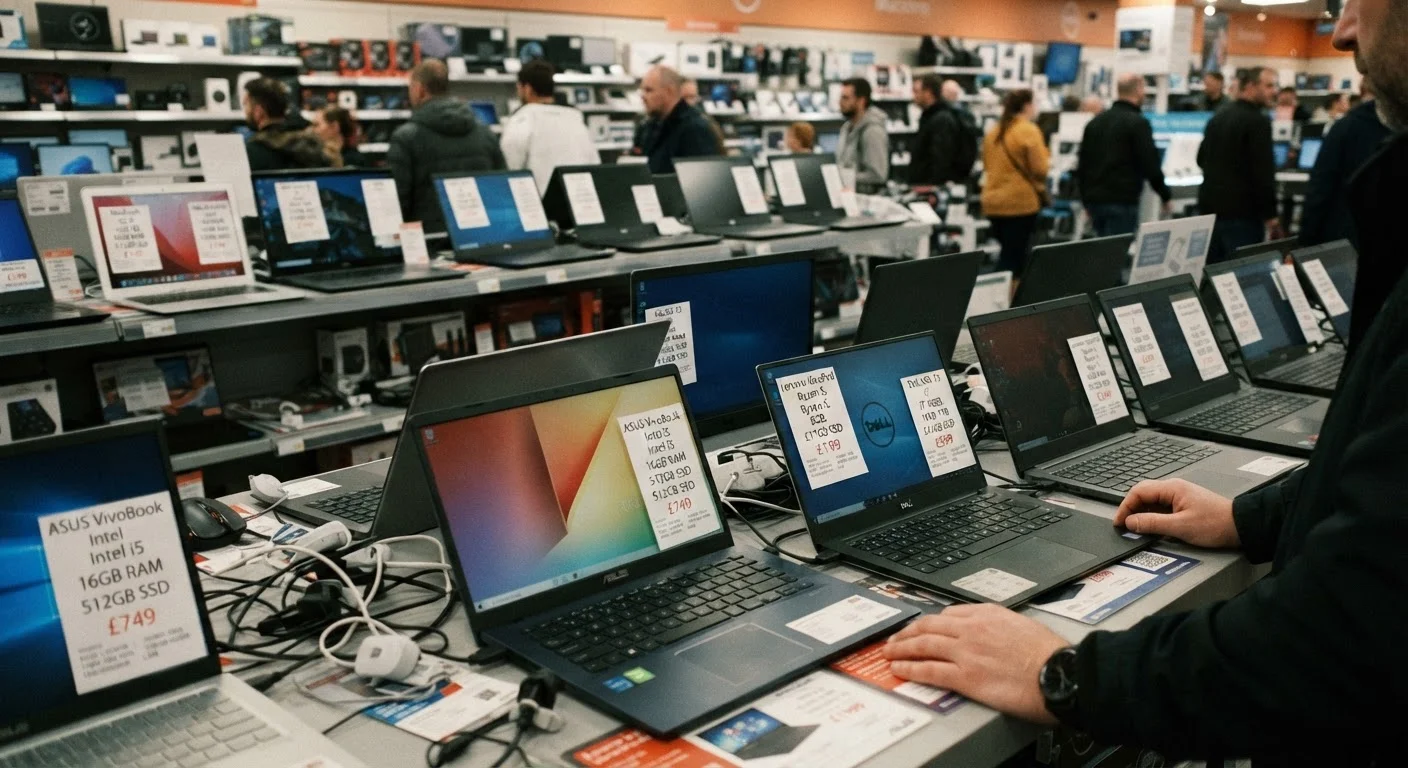
Photo credit: TopInfoTabs.com | Easy Insights For Inspiration
In this article
"More GHz is always faster" and other widely repeated computer myths — fact-checked and corrected with straightforward explanations.
Key Takeaways
- Clock speed alone does not determine how fast a processor feels in everyday use.
- More RAM beyond a practical threshold rarely improves performance for typical tasks.
- An expensive computer is not automatically the right computer for your specific needs.
- Storage type - SSD versus HDD - matters far more than raw storage capacity for perceived speed.
- Refurbished computers from reputable sources can be a legitimate and reliable option.
Why Computer Specs Mislead More Than They Inform
Buying a computer should be straightforward. In practice, most product listings bury the genuinely useful information under a cascade of numbers that are presented without context. Specs like clock speed, gigabytes, and core counts are real measurements - they just don't mean what most marketing copy implies. The result is that buyers frequently overspend on capabilities they'll never use, or under-buy in areas that would have made a real difference to their experience.
The myths below are among the most widely repeated in consumer electronics. Each one has a grain of truth that makes it sticky - and a more complete picture that changes the practical conclusion.
Myth
A higher GHz number always means a faster computer.
Fact
Clock speed is one factor among many; architecture, core count, and workload type all shape real-world performance.
Gigahertz (GHz) measures how many cycles a processor completes per second, but a cycle on a modern processor accomplishes far more work than a cycle on an older chip running at the same speed. A newer processor at 3.2 GHz can substantially outperform an older one at 4.0 GHz on the same task. Beyond that, many demanding applications - video editing, running multiple browser tabs, gaming - benefit more from additional cores than from raw clock speed. For a plain-language breakdown of what processor numbers actually mean, see our guide to RAM, storage, and processors.
Myth
You should always buy the most RAM you can afford.
Fact
For most everyday tasks, 8-16 GB of RAM is sufficient; beyond that, returns diminish sharply unless your workload demands it.
RAM (Random Access Memory) lets your computer handle multiple tasks simultaneously without slowdown. The practical ceiling depends entirely on what you do. Web browsing, word processing, video calls, and streaming comfortably fit within 8 GB on a modern system. Stepping to 16 GB adds useful headroom for heavier multitasking. Professional video production, 3D rendering, or running virtual machines genuinely benefits from 32 GB or more - but those are specific, demanding use cases. Paying a premium for 64 GB when you check email and edit documents is money that provides no tangible benefit in your daily experience.
Myth
A bigger hard drive number means a faster computer.
Fact
Storage capacity and storage speed are entirely separate; the type of drive - SSD or HDD - determines speed, not its size.
A 2 TB hard disk drive (HDD) holds more files than a 512 GB solid-state drive (SSD), but the SSD will make the system feel dramatically faster. SSDs have no moving parts and access data in a fraction of the time an HDD requires. Boot times, application launch speeds, and file transfer rates are all governed by drive type. Choosing a lower-capacity SSD over a high-capacity HDD is often the better trade-off for everyday responsiveness - and external drives or cloud storage can handle overflow cheaply.
Myth
Spending more money guarantees a better computer for you.
Fact
Price signals build quality and component headroom, but the right computer is the one matched to your actual workload - not your budget ceiling.
A premium laptop loaded with a powerful discrete graphics card and 64 GB of RAM is genuinely over-engineered for someone who uses it to manage spreadsheets and join video calls. Conversely, a budget machine chosen purely on low price may lack the storage type or memory to handle even moderate multitasking smoothly. The productive question is not "how much should I spend?" but "what tasks do I need this machine to handle reliably for the next several years?" If you're navigating a first purchase, our first-laptop guide walks through what actually matters.
Myth
Refurbished computers are unreliable and not worth the risk.
Fact
Refurbished computers from reputable sources are typically tested, repaired to standard, and carry warranties comparable to new devices.
The word "refurbished" covers a wide spectrum. Manufacturer-certified refurbished units are typically inspected, have faulty components replaced, and ship with a warranty. The risk profile is meaningfully different from buying a used device from an individual seller with no accountability. For a fuller picture of what you gain and give up, our refurbished computer breakdown covers both sides without sugarcoating.
Myth
A new computer should stay fast indefinitely - if it slows down, something is wrong with it.
Fact
Performance degradation over time has well-understood causes - software bloat, background processes, and thermal throttling - most of which are manageable.
A computer that feels slower after a year is not necessarily failing. Operating system updates grow in resource demand, installed applications accumulate background processes, and storage drives slow down as they fill toward capacity. Thermal throttling - where processors reduce speed to avoid overheating - is a common culprit in laptops that are never cleaned. Many of these issues have straightforward fixes that don't require buying a new machine. Why your new computer feels slow within a year explains the real causes and what to do about each one.
Applying These Corrections to Your Next Purchase
The pattern across these myths is consistent: a single spec number, taken in isolation, is a poor proxy for actual usability. Real-world performance emerges from how components work together and how well they match the tasks you put them to.
~80%
PC users primarily doing everyday tasks
Industry usage surveys consistently indicate that the large majority of personal computer use involves browsing, communication, document editing, and media consumption - tasks that do not require high-end hardware.
3-5x
Typical SSD speed advantage over HDD
Sequential read speeds on consumer SSDs commonly range from three to five times faster than mechanical hard drives, directly affecting how quickly systems boot and applications launch.
Before evaluating any specific machine, it helps to write down a short list of your actual use cases - the applications you open every day, whether you travel with the device, and how long you want it to remain capable. That list will tell you more about what you need than any spec sheet. For a deeper look at the numbers that do matter and how to read them, our plain-language spec guide is a useful companion to this article. Similarly, if home technology decisions are part of your broader picture, home tech myths that keep costing people time and money applies the same myth-busting approach to smart home devices.
Retailer Spec Sheets Aren't Neutral Documents
Specifications listed on product pages are chosen by manufacturers and retailers to emphasize numbers that look impressive in comparison shopping - not necessarily the ones that matter most to you. A high RAM figure or a large storage number can distract from a slow drive type or an underpowered processor architecture. Cross-reference specs with independent reviews that test real-world workloads before making a decision.

Author
Tech & Gadgets Editorial Team
Tech & Gadgets Editorial Team is the collective byline for our editorial team and contributor network. Articles published under this byline or an editorial pen name are researched, written, and reviewed according to our editorial standards for clarity, consistency, and independence before publication.
View all articles →