
RAM, Storage, and Processors: What Those Numbers Actually Mean
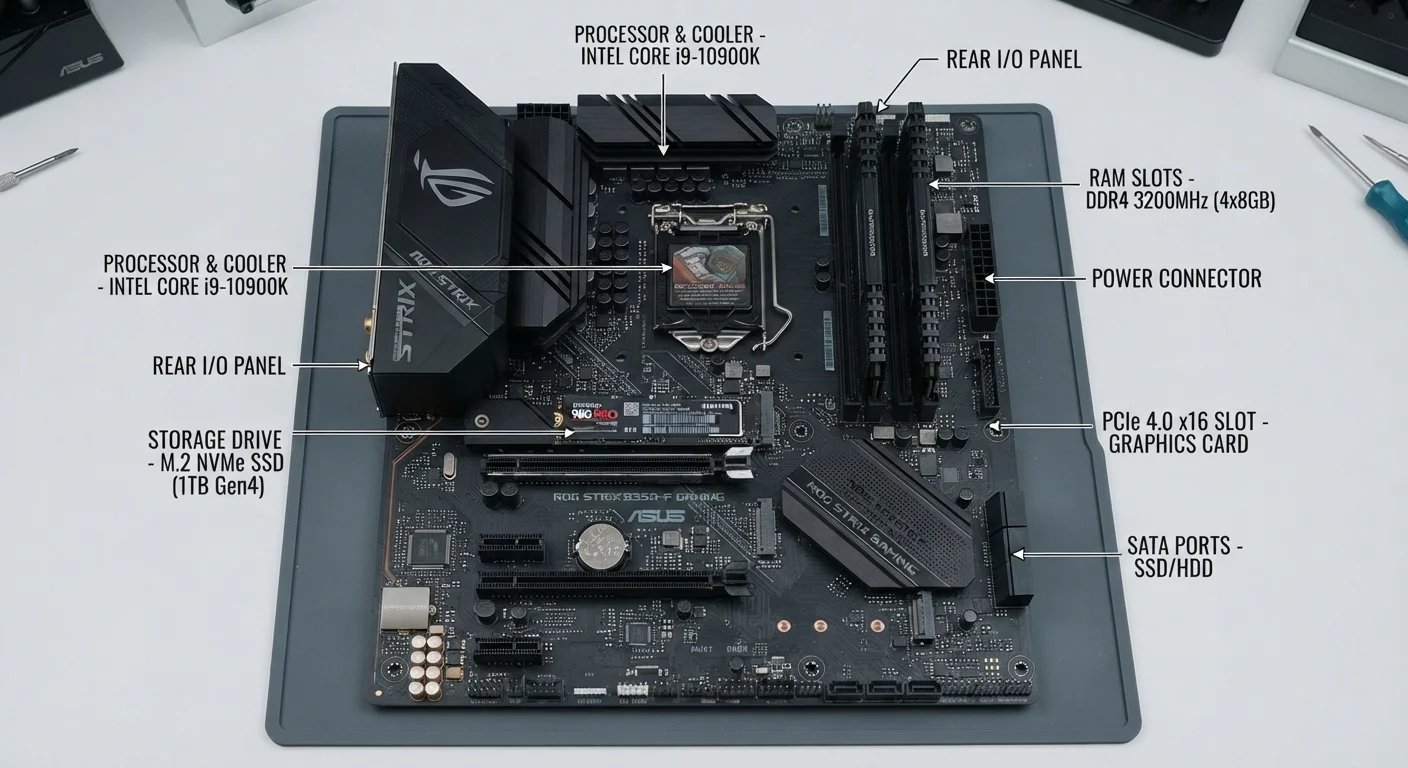
Photo credit: TopInfoTabs.com | Easy Insights For Inspiration
In this article
Confused by GB, GHz, and cores? This plain-language guide breaks down the specs that matter most when choosing a computer.
Key Takeaways
- RAM controls multitasking; more RAM means smoother performance when running several apps simultaneously.
- Storage capacity (GB/TB) tells you how much you can save, while storage type (SSD vs. HDD) determines speed.
- Processor GHz alone is not a reliable measure of speed - generation and core count matter equally.
- For most everyday users, 8-16 GB of RAM and a solid-state drive cover everyday needs comfortably.
- Matching specs to your actual workload - not the highest numbers - leads to better value.
RAM: Your Computer's Working Memory
RAM - Random Access Memory - is where your computer temporarily stores information it is actively using. Every open app, browser tab, and background process occupies a slice of RAM. When RAM fills up, the computer starts borrowing space from storage, which is significantly slower, causing that familiar sluggishness.
RAM is measured in gigabytes (GB). The practical takeaway: the more RAM you have, the more you can do simultaneously without a slowdown. For a user who keeps a dozen browser tabs open alongside a video call and a document editor, RAM capacity is often the limiting factor - not the processor.
RAM and Storage Are Not the Same Thing
RAM holds what your computer is working on right now; storage holds everything else permanently. A computer with plenty of storage but low RAM will still struggle under multitasking. When reading a spec sheet, check both figures - they serve entirely different functions and one cannot substitute for the other.
RAM is distinct from storage. A computer with 512 GB of storage but only 4 GB of RAM will still feel slow during multitasking. Don't let a large storage number distract from a low RAM figure on a spec sheet.
Storage: Capacity vs. Speed
Storage is where your files, apps, photos, and operating system permanently live. Two numbers matter here: how much storage you get and what type it is.
Capacity is measured in gigabytes (GB) or terabytes (TB). One TB equals roughly 1,000 GB. For most users who don't store large video libraries locally, 256-512 GB is workable. Content creators storing raw footage or large design files benefit from 1 TB or more.
Type matters more than most buyers realize. A Solid-State Drive (SSD) has no moving parts and can access data many times faster than a traditional Hard Disk Drive (HDD). The result is a computer that boots in seconds, opens apps almost instantly, and transfers files rapidly. Most modern laptops now use SSDs, but budget or older models may still include HDDs - something worth checking on any spec sheet.
~5x
Speed difference: SSD vs. HDD read speeds
Sequential read speeds for consumer SSDs commonly range from 500 MB/s to over 3,500 MB/s (NVMe), compared to 80-160 MB/s for typical mechanical hard drives.
16 GB
RAM commonly recommended for modern multitasking
Industry guidance from major PC manufacturers and technology publications increasingly cites 16 GB as the practical baseline for a smooth multitasking experience on current operating systems.
1 TB
Storage capacity for content-heavy users
Users storing large photo libraries, video projects, or extensive software installations typically require 1 TB or more of local storage to avoid frequently managing disk space.
Processors: Beyond the GHz Number
The processor (CPU - Central Processing Unit) executes every instruction your software sends. Two measurements dominate marketing materials: clock speed (GHz) and core count.
Clock speed in gigahertz (GHz) tells you how many processing cycles per second a chip can complete. A higher number sounds better, but processor architecture - how efficiently each cycle is used - varies dramatically across generations. A chip released in a newer generation often delivers more real-world performance at a lower GHz than an older generation chip with a higher clock speed. This is one of the most frequently misunderstood specs in consumer technology. Our article on common computer buying myths covers this in depth.
Core count describes how many independent processing units the CPU contains. Dual-core, quad-core, and octa-core chips can handle progressively more simultaneous tasks. For everyday computing, a modern quad-core processor is more than capable. Demanding workloads - video editing, 3D rendering, software development - scale well with higher core counts.
Processor Generation Matters as Much as Speed
Chip manufacturers release new processor generations that deliver more performance per clock cycle than their predecessors. When comparing processors, look at the generation identifier (often a number in the chip's name) alongside GHz and core count. A newer-generation chip at a lower clock speed frequently outperforms an older chip that looks stronger on paper. Checking independent benchmark comparisons for specific chip families can clarify real-world performance differences.
If you're navigating these specs for the first time ahead of a purchase, our first laptop guide walks through the decision-making process from the ground up. For monitor specs that pair with these components, see our guide on monitor specifications explained.
Matching Specs to Your Real-World Needs
The goal isn't the highest numbers - it's the right balance for how you actually use a computer. A professional video editor and a student doing homework have genuinely different requirements, and over-specifying wastes money while under-specifying causes daily frustration.
Specs on mobile devices follow similar logic but differ in important ways - processor architectures are optimized for power efficiency, and RAM management works differently. If you're weighing a phone or tablet alongside a laptop, the mobile specs glossary provides a useful comparison point.
Frequently Asked Questions

Author
Tech & Gadgets Editorial Team
Tech & Gadgets Editorial Team is the collective byline for our editorial team and contributor network. Articles published under this byline or an editorial pen name are researched, written, and reviewed according to our editorial standards for clarity, consistency, and independence before publication.
View all articles →