
Getting Started with a Smartphone: Everything First-Time Users Need to Know
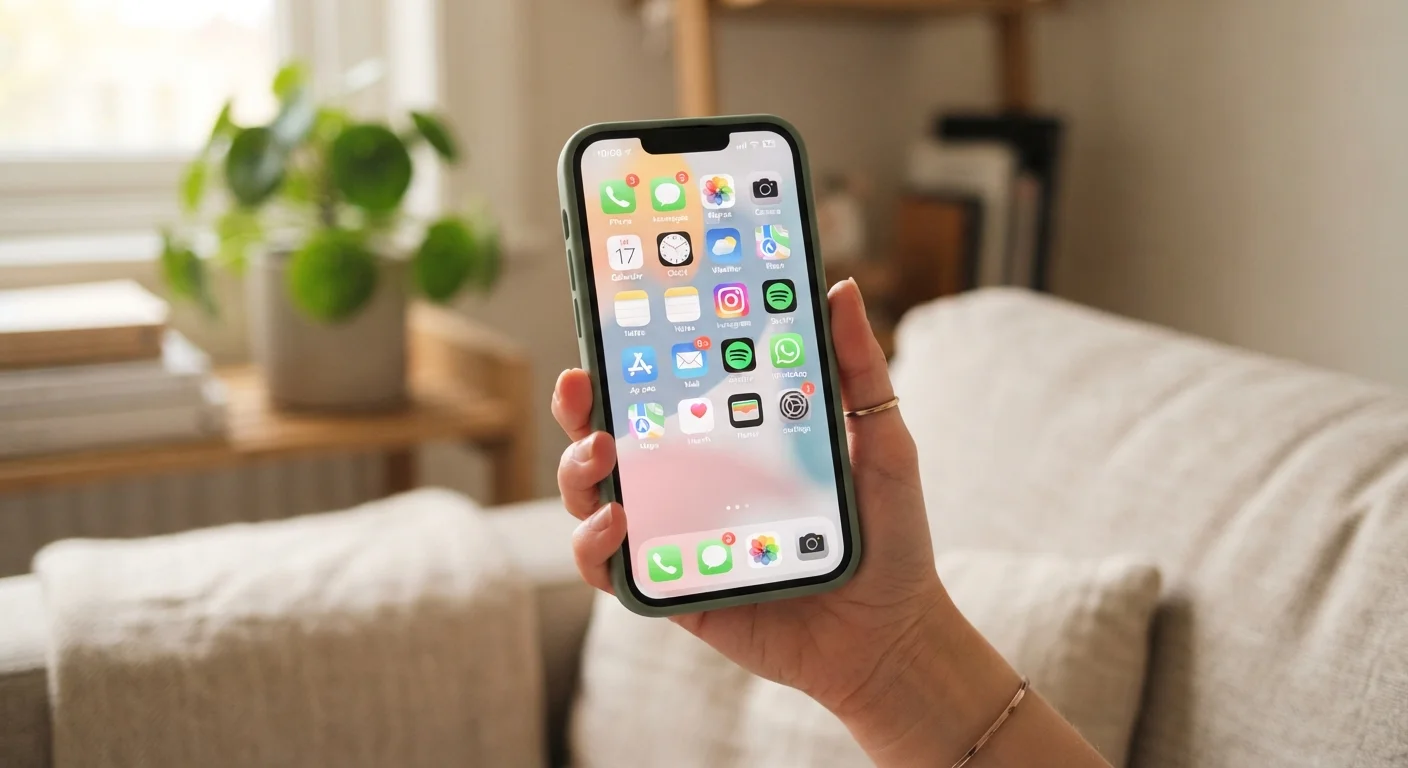
Photo credit: TopInfoTabs.com | Easy Insights For Inspiration
In this article
From SIM cards to app stores, this beginner-friendly guide covers the foundations of smartphone use without assuming any prior knowledge.
Key Takeaways
- A smartphone is a pocket-sized computer that makes calls, sends messages, and runs apps.
- Two major operating systems - iOS and Android - power nearly every smartphone on the market.
- Setting up a Google or Apple account is the essential first step to accessing apps and features.
- Connecting to Wi-Fi preserves your cellular data allowance for when you need it most.
- A strong lock screen passcode is your first and most important security measure.
- App stores are the safe, official way to download new software onto your phone.
What Is a Smartphone, Really?
A smartphone is a handheld computer that also happens to make phone calls. Unlike a basic mobile phone, it runs a full operating system - software that manages everything from your apps to your Wi-Fi connection. Nearly every smartphone in the US runs one of two operating systems: iOS (made by Apple, found on iPhones) or Android (developed by Google, used by a wide range of manufacturers).
The operating system determines how your phone looks and behaves, but both platforms give you access to apps, the internet, a camera, maps, messaging, and much more. If you are weighing other devices at the same time, our introduction to choosing a first laptop walks through how the decision process differs for that category.
Operating system (OS)
The core software that runs your phone and manages all its features. iOS and Android are the two dominant smartphone operating systems.
SIM card
A small chip inserted into your phone that connects it to your mobile carrier's network, enabling calls and cellular internet access.
eSIM
A digital SIM built directly into the phone's hardware. Your carrier activates it remotely, so there is no physical card to insert.
App
A self-contained program you can download and run on your phone, from weather tools and maps to games and video-calling services.
Cellular data
Internet access provided by your mobile carrier over the phone network, used when you are not connected to Wi-Fi. Most plans include a monthly allowance.
Cloud backup
An automatic copy of your phone's data - photos, contacts, settings - stored on remote servers so it can be restored if your device is lost or replaced.
Setting Up for the First Time
When you power on a new smartphone for the first time, a setup assistant will walk you through the basics step by step. The most important early decision is creating or signing into an account - an Apple ID on iPhone or a Google account on Android. This account is your gateway to downloading apps, backing up your data, and syncing information across devices.
During setup you will also be prompted to insert a SIM card - the small chip that links your phone to your carrier's network for calls and cellular data. Many newer phones support an eSIM, a digital version built directly into the device that your carrier can activate remotely.
Back Up Before You Begin
Enable automatic backups during setup - iCloud for iPhone or Google One for Android. This ensures your contacts, photos, and app data are preserved even if something goes wrong with your device. Backups happen silently in the background when your phone is charging and connected to Wi-Fi.
Before finishing setup, connect to your home Wi-Fi network. Downloading updates and apps over Wi-Fi avoids using your cellular data allowance and is typically much faster.
Navigating Your Home Screen and Apps
Your home screen is the first thing you see after unlocking the phone. It displays app icons - small images that launch individual programs when tapped. Apps are organized across multiple scrollable pages, and most phones also include a dock at the bottom of the screen for your most-used apps.
To find new apps, open your platform's app store: the App Store on iPhone or Google Play on Android. Search by name or category, then tap the install button. Stick to the official stores - they apply basic safety screening that third-party sources do not.
Swiping down from the top of the screen typically reveals your notification shade, where incoming alerts appear. A second swipe often exposes quick-toggle buttons for Wi-Fi, Bluetooth, and screen brightness. Learning these gestures early will make everyday use feel much more natural.
Staying Connected: Calls, Texts, and Wi-Fi
Making a call is as simple as opening the phone app, typing a number on the keypad, and pressing the call button. Sending a text message works through the Messages app - type your contact's name, write your message, and tap send. Both apps come pre-installed on every smartphone.
For internet access, connect to a Wi-Fi network by going to Settings, selecting Wi-Fi, and tapping your network name. You will be asked for the network password the first time. Once saved, your phone will reconnect automatically whenever that network is in range.
Data Usage Adds Up Quickly
Streaming video, downloading apps, and video calls consume cellular data faster than basic browsing or messaging. Most carriers allow you to check your data usage in their app or in your phone's Settings. If you are on a limited plan, keeping an eye on consumption early prevents bill surprises at the end of your billing cycle.
Beyond calls and texts, smartphones open the door to a wide range of connected experiences. If you later want to expand your home tech setup, our guide to setting up a smart speaker for the first time is a helpful companion for getting another device connected smoothly.
Keeping Your Phone Secure and Charged
Security starts with a strong lock screen. Set a PIN (at least six digits), a pattern, or a password - and enable biometric options like fingerprint or face recognition if your phone supports them. These features prevent anyone else from accessing your apps and personal data if your phone is lost or left unattended.
Keep your phone's software updated. Both iOS and Android release periodic updates that fix security vulnerabilities and improve performance. You can check for updates in Settings under General > Software Update (iPhone) or System > System Update (Android).
Avoid Public Wi-Fi for Sensitive Tasks
Open Wi-Fi networks in cafés, airports, and hotels are convenient but carry more risk than your password-protected home network. Avoid logging into banking apps or entering passwords when connected to public Wi-Fi. If you need to do something sensitive on the go, switch to your cellular data connection instead.
For charging, use the cable and adapter that came with your phone, or one that matches your phone's charging standard. Charge when the battery drops to around 20% rather than letting it reach zero regularly - this is generally considered better for long-term battery health, though habits here have a modest rather than dramatic effect. Most modern phones charge via USB-C; older iPhones use Lightning.
As you grow more comfortable with your smartphone, you may find it opens up other areas of life too - from managing finances to building new daily habits. Whatever the next step looks like for you, confidence with the device in your hand is a strong foundation to build from.
Frequently Asked Questions

Author
Tech & Gadgets Editorial Team
Tech & Gadgets Editorial Team is the collective byline for our editorial team and contributor network. Articles published under this byline or an editorial pen name are researched, written, and reviewed according to our editorial standards for clarity, consistency, and independence before publication.
View all articles →