
Setting Up a New Phone Without Losing Anything That Matters
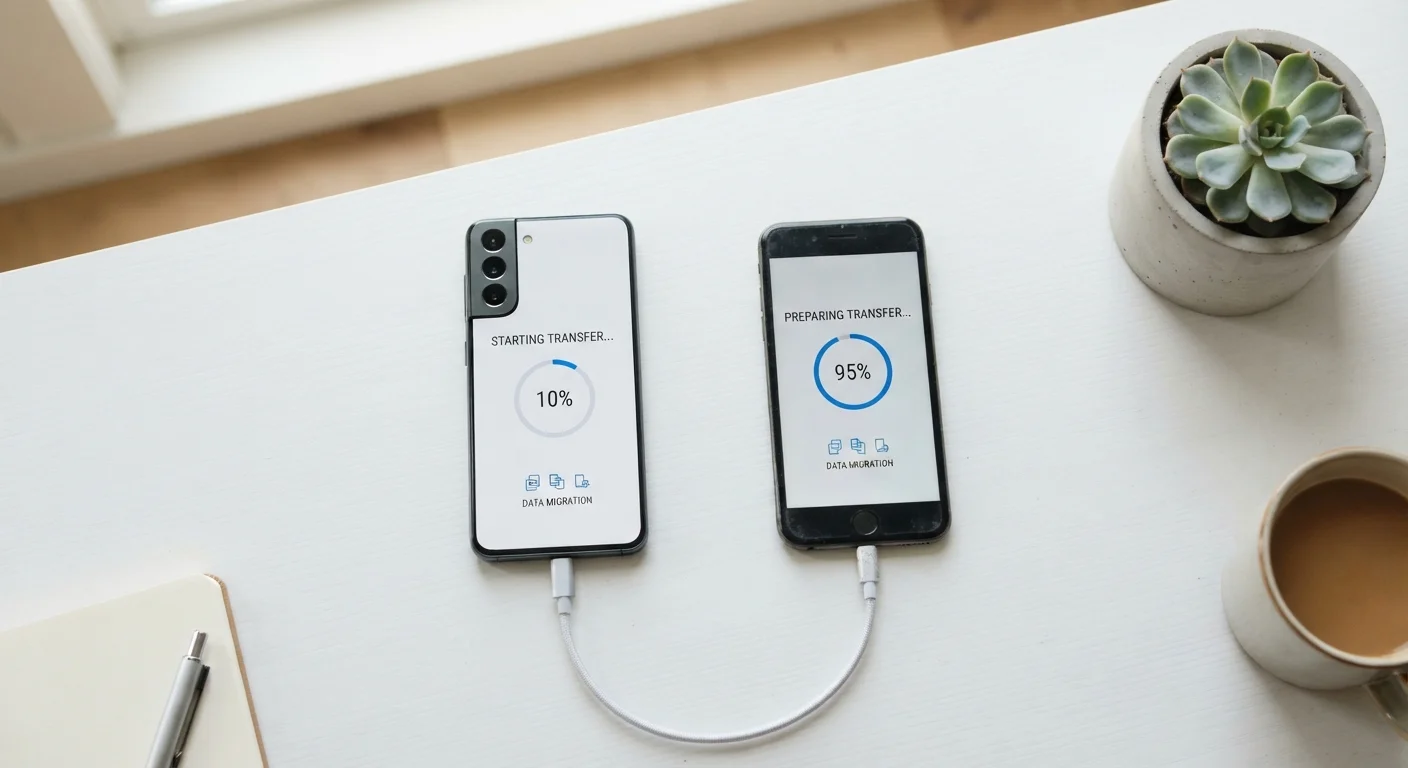
Photo credit: TopInfoTabs.com | Easy Insights For Inspiration
In this article
A step-by-step walkthrough for transferring contacts, photos, apps, and settings to a new device — on both Android and iOS.
Key Takeaways
- Back up your old phone before doing anything else - it's your safety net for the entire process.
- Both Android and iOS offer built-in transfer tools that handle contacts, photos, and most app data automatically.
- Authenticator apps and two-factor authentication codes require manual migration steps before wiping the old device.
- Completing a full transfer typically takes 20 to 60 minutes depending on stored data volume.
- A few manual checks after setup prevent common issues like missing texts and lost Wi-Fi passwords.
Why Phone Transfers Go Wrong (And How to Avoid It)
Switching to a new phone feels straightforward until something is missing - a years-old photo, a saved password, or a banking app that won't recognize your login. Most data-loss incidents during phone transfers trace back to one of three causes: no backup was made beforehand, the transfer method used didn't cover all data types, or authenticator apps were overlooked.
The good news is that both iOS and Android have dramatically improved their transfer tooling. When you follow the right sequence, the process is largely automated. The steps that still require manual attention are predictable - and covered below.
What you will need
iCloud (iOS)
Backs up and restores iPhone data including contacts, photos, messages, and app data wirelessly.
Google One / Google Account Backup (Android)
Backs up Android contacts, app data, call history, and settings to your Google account.
Move to iOS app (Android to iPhone)
Transfers contacts, photos, messages, and accounts from an Android phone to a new iPhone over Wi-Fi.
USB-C to USB-C or USB-A cable
Enables a direct wired transfer between two Android devices, often faster than wireless for large photo libraries.
Step-by-Step Transfer Instructions
Follow these steps in order. Skipping ahead - particularly past the backup and authenticator steps - is where most problems originate.
Back up your old phone completely
Before you unbox anything, create a fresh backup of your old device. On iPhone, go to Settings → [Your Name] → iCloud → iCloud Backup and tap Back Up Now. On Android, go to Settings → System → Backup and confirm your Google account backup is enabled, then tap Back Up Now.
Wait for the backup to finish - don't skip this. If anything goes wrong during transfer, this is the restore point you'll need.
Migrate authenticator apps and two-factor codes first
This step catches most people off guard. If you use an authenticator app (such as Google Authenticator or Microsoft Authenticator) for two-factor logins, those codes do not transfer automatically. Open your authenticator app and look for an export or account transfer option - most apps now include one. Complete the export to your new device before you deactivate the old phone.
If you use SMS-based two-factor authentication, those will continue working as soon as your SIM or phone number is active on the new device.
Use the built-in transfer tool during new phone setup
When you power on your new phone for the first time, both platforms walk you through a guided setup. Don't skip past these screens.
- iPhone to iPhone: Choose Restore from iCloud Backup or use Quick Start by holding both phones near each other - iOS will animate a transfer confirmation.
- Android to Android: Follow the Copy apps & data prompt and sign in to your Google account. A cable connection is faster for large libraries.
- Android to iPhone: Install the Move to iOS app on your Android before starting iPhone setup; you'll enter a code shown on the iPhone screen to initiate the transfer.
Verify contacts, photos, and messages transferred correctly
Once setup completes, open your Contacts, Photos, and Messages apps on the new device and spot-check a few entries you'd notice if they were missing. Contacts occasionally require a manual sync if they were stored locally rather than in iCloud or Google Contacts.
On iPhone, go to Settings → Contacts → Accounts to confirm your account is syncing. On Android, open the Contacts app, tap your profile, and verify Google sync is active.
Re-download apps and log back in to key accounts
App installations transfer automatically on both platforms, but login sessions generally do not. Make a short list of the accounts you use most - banking, streaming, email, social - and log back in to each one. Have your passwords handy; a password manager app makes this significantly faster.
Paid apps won't require repurchase: on iOS, your App Store purchase history syncs to the new device; on Android, Google Play remembers all prior purchases under your account.
Review privacy and notification settings on the new device
Fresh setups often default to permissive settings - apps requesting location access, notifications turned on for everything. Take ten minutes to tighten permissions to your preference. On iPhone: Settings → Privacy & Security. On Android: Settings → Privacy.
For a deeper walkthrough of which permissions are worth keeping, see our guide to phone privacy settings - it covers location, ad IDs, and app permissions in practical terms.
Don't Discard Your Old Phone Immediately
Keep your old phone powered on and accessible for at least 48 hours after the transfer. It's common to realize a day later that a specific app, saved password, or local file didn't make the journey. Having the old device available gives you a fallback without panic.
After Setup: A Few Checks Worth Making
Once your new phone is running normally, a small amount of follow-up prevents the most common lingering issues.
SIM Transfer Is Separate From Data Transfer
Swapping your SIM card (or completing an eSIM transfer through your carrier) is a separate step from the data backup process described here. Without your SIM active on the new phone, SMS two-factor codes and phone calls won't reach you. Contact your carrier to complete the SIM or eSIM transfer before or immediately after device setup.
- Wi-Fi passwords: Saved networks transfer on iOS via iCloud Keychain but may need to be re-entered on Android unless you used a device-to-device cable transfer.
- Voicemail greeting: Carrier voicemail greetings are not backed up and will reset to default - re-record yours if it matters.
- Health and fitness data: On iPhone, Apple Health data transfers via iCloud backup. On Android, Google Fit data syncs through your Google account, but third-party fitness app data varies by app.
Once you're set up and comfortable with your device, it's worth building habits that protect its long-term health. Our article on habits that quietly shorten a smartphone's lifespan covers the routines - like overnight charging and ignoring updates - that gradually degrade performance in ways most users don't notice until it's too late.
Back Up Before You Do Anything Else
The single most common data-loss scenario happens when someone starts setting up a new phone before completing a backup of the old one. A backup takes minutes and creates a complete safety net. Skipping it means any interruption during the transfer - a drained battery, a failed connection - could leave data unrecoverable. Do this first, every time.

Author
Tech & Gadgets Editorial Team
Tech & Gadgets Editorial Team is the collective byline for our editorial team and contributor network. Articles published under this byline or an editorial pen name are researched, written, and reviewed according to our editorial standards for clarity, consistency, and independence before publication.
View all articles →