
SSD vs. HDD: Why Your Storage Choice Affects More Than Just Speed
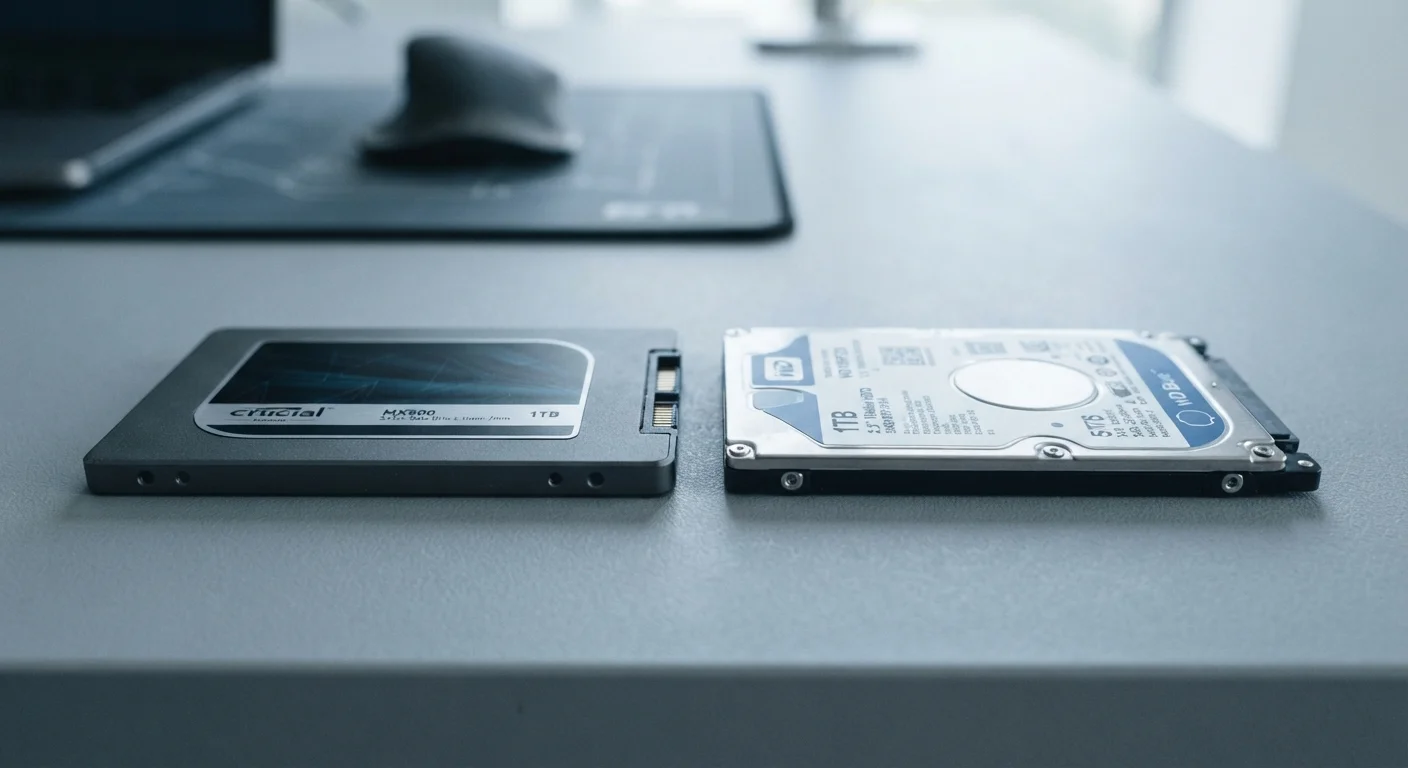
Photo credit: TopInfoTabs.com | Easy Insights For Inspiration
In this article
Solid-state and hard-disk drives differ in speed, durability, noise, and longevity. Here's what each trade-off actually means day to day.
Key Takeaways
- SSDs are significantly faster than HDDs, reducing boot times and file transfer waits noticeably.
- HDDs offer more storage capacity per dollar, making them practical for bulk data archiving.
- SSDs have no moving parts, making them quieter and more resistant to physical shock damage.
- HDDs are mechanical devices whose spinning platters make them vulnerable to drops and vibration.
- Laptops almost universally benefit from SSDs due to power efficiency and durability demands.
- For desktop storage towers or external backups, HDDs remain a cost-effective and viable option.
What Each Drive Actually Does
Both SSDs and HDDs accomplish the same fundamental task: storing your files, operating system, applications, and data long-term. The difference is how they do it - and that method shapes nearly every aspect of the experience.
A Hard Disk Drive (HDD) uses spinning magnetic platters and a mechanical read/write arm that physically moves across the disk surface to retrieve or save data. A Solid-State Drive (SSD) stores data on flash memory chips with no moving parts at all - data is accessed electronically, not mechanically.
This fundamental difference in architecture is responsible for the gap in speed, noise, durability, and power use. For a broader look at how storage fits alongside other specs like RAM and processors, see our plain-language guide to computer specs.
| Criterion | SSD | HDD |
|---|---|---|
| Read/Write Speed | Very fast (flash memory) | Slower (mechanical platters) |
| Moving Parts | None | Spinning platters, moving arm |
| Noise Level | Silent | Audible hum and clicking |
| Shock Resistance | High | Low - vulnerable to drops |
| Power Consumption | Lower | Higher |
| Cost per Gigabyte | Higher | Lower |
| Typical Capacity Range | 256 GB - 4 TB (consumer) | 500 GB - 20+ TB (consumer) |
| Best Role | System drive, active use | Bulk storage, archiving, backups |
Speed and Day-to-Day Performance
Speed is where SSDs create the most noticeable difference for everyday users. A typical consumer SSD reads data several times faster than a conventional HDD. In practical terms, this means your computer boots in seconds rather than over a minute, applications open almost instantly, and large file transfers that once took minutes finish in moments.
HDDs, constrained by the physical rotation speed of their platters (commonly 5,400 or 7,200 RPM - revolutions per minute), introduce mechanical delays that SSDs simply don't have. When an HDD needs to retrieve fragmented data scattered across the disk, the arm must physically seek multiple locations, adding latency.
3-5×
Typical SSD speed advantage over HDD
Consumer SSDs commonly achieve sequential read speeds several times higher than 7,200 RPM hard drives under standard benchmark conditions.
~$0.02-0.04
Approximate HDD cost per gigabyte (USD)
Hard disk drives have maintained a consistent cost-per-gigabyte advantage over SSDs, making them attractive for large-capacity storage needs.
That said, for pure storage of files you rarely access - archived photos, old project folders, backup copies - the speed difference matters far less than for your active system drive.
Durability, Noise, and Power Draw
Because HDDs contain spinning platters and a moving read/write arm, they are vulnerable to physical shock. Dropping a laptop mid-operation with an HDD carries a real risk of data loss or mechanical failure. SSDs, with no moving parts, handle bumps, drops, and vibration far more reliably.
Noise is another practical consideration. HDDs produce an audible hum and occasional clicking sounds during operation. SSDs are completely silent. If you work in a quiet environment or find fan and drive noise distracting, this difference is immediately apparent.
Power consumption also differs meaningfully. SSDs draw less power than HDDs, which directly translates to longer battery life on laptops. This is one reason SSDs have become the default in virtually all modern portable computers. For anyone weighing storage decisions as part of a broader laptop-vs-desktop choice, our laptop vs. desktop trade-off guide covers how storage type intersects with portability.
Capacity, Cost, and When HDDs Still Make Sense
Where HDDs retain a genuine advantage is in the cost-per-gigabyte equation. A multi-terabyte HDD typically costs a fraction of an equivalent-capacity SSD. For users who need to store large video libraries, raw photo archives, or extensive data backups, this difference in storage economics is real and significant.
A common and practical approach for desktop users is a hybrid setup: a smaller SSD for the operating system and frequently used applications, paired with a larger HDD for bulk file storage. This captures the speed benefits of an SSD for active use while keeping storage costs manageable. Understanding the difference between value and price is useful here - paying more for an SSD system drive may deliver better long-term value than choosing a cheaper, slower HDD for every role.
SSD Lifespan and Write Limits
SSDs have a finite number of write cycles per memory cell, measured by a spec called TBW (terabytes written). For most everyday users - writing documents, browsing, streaming - this limit is unlikely to be reached within the practical lifespan of the device. Heavy workloads involving constant large-file writes, such as professional video editing, are worth factoring in when evaluating SSD longevity. Manufacturers typically publish TBW ratings in product documentation.
For context on how storage relates to other device types, our mobile storage explainer breaks down how flash storage functions in smartphones and tablets.

Author
Tech & Gadgets Editorial Team
Tech & Gadgets Editorial Team is the collective byline for our editorial team and contributor network. Articles published under this byline or an editorial pen name are researched, written, and reviewed according to our editorial standards for clarity, consistency, and independence before publication.
View all articles →