
Mobile Accessibility Features Most Users Never Enable - and Should
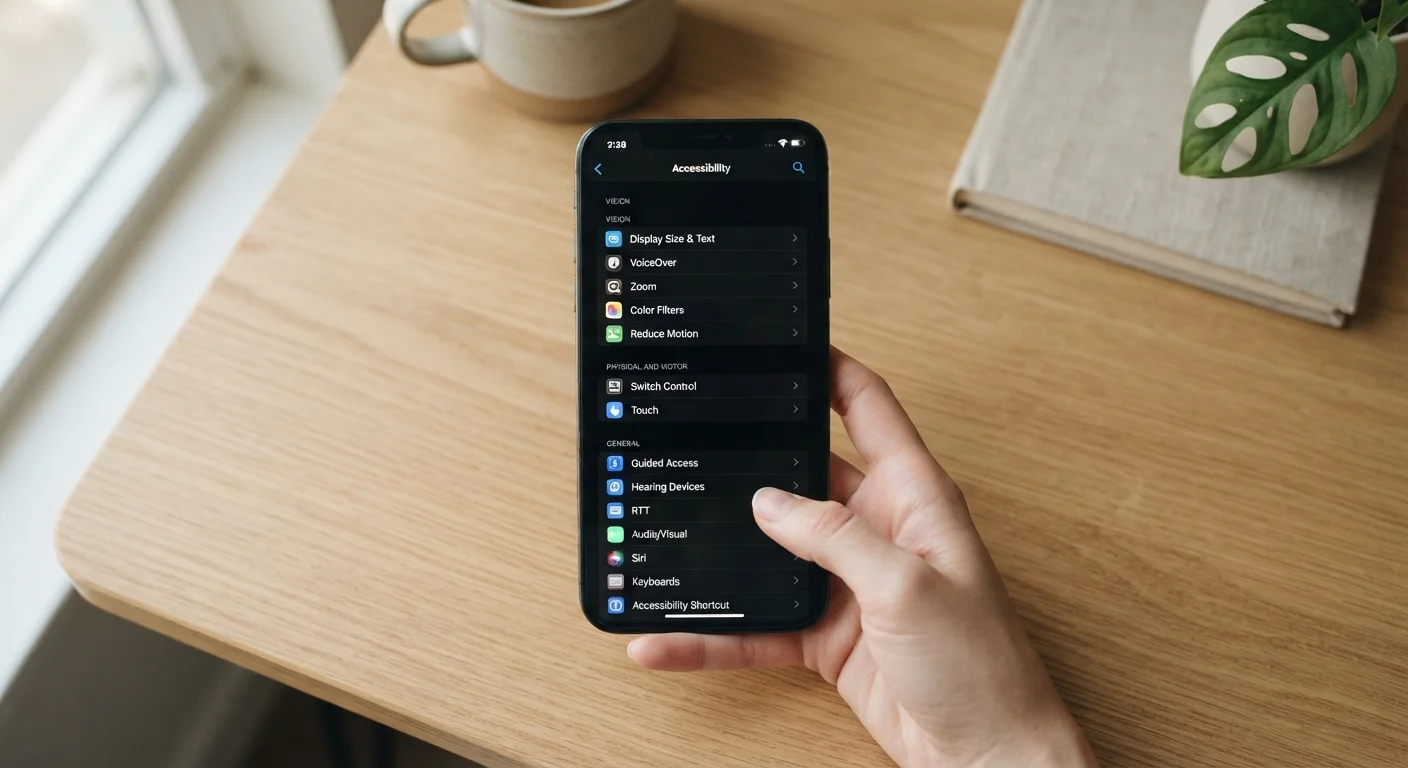
Photo credit: TopInfoTabs.com | Easy Insights For Inspiration
In this article
From magnification gestures to sound recognition, accessibility settings improve everyday use for far more people than they're marketed to.
Key Takeaways
- Accessibility features are designed for disability but routinely improve daily use for all smartphone users.
- Settings like magnification, sound recognition, and display adjustments are rarely enabled by default.
- Enabling these features takes minutes and can meaningfully reduce eye strain, missed alerts, and navigation friction.
- Both Android and iOS offer overlapping accessibility toolkits - the feature names differ, but the benefits are comparable.
- Sharing these settings with older family members or anyone new to smartphones is one of the fastest wins in tech setup.
The Settings Menu Most People Skip Entirely
Every modern smartphone ships with a dedicated Accessibility section buried somewhere in Settings. Most users open it once, assume it's for people with diagnosed disabilities, and never return. That assumption costs them - daily.
The engineers who build these features often describe them as universal design tools: solutions created to address specific barriers that end up improving the experience for nearly everyone. Magnification helps not just users with low vision but anyone squinting at fine print in a restaurant. Sound recognition benefits not just the deaf community but anyone who works in a noisy environment and needs a visual or haptic cue when something important happens. The features below are consistently underused, consistently useful, and consistently overlooked - and enabling each one takes under two minutes.
If you're also helping a family member get more comfortable with their device, see our guide on introducing home tech to older adults - several of these settings appear in that workflow too.
Magnification Gestures
Found under Accessibility → Vision on Android and Accessibility → Zoom on iOS, magnification gestures let you triple-tap the screen or use a two-finger pinch to zoom into any part of the display - apps, photos, websites, maps, all of it. Unlike increasing the system font size (which only affects text and can break app layouts), magnification is a temporary, on-demand tool that leaves your normal view intact.
It's especially useful when reading dense content on a small screen, inspecting a photo, or checking small-print details like terms, expiration dates, or nutritional labels. Once activated, it becomes one of those features that feels indispensable within a day.
Magnification is a temporary, on-demand zoom that leaves your normal display layout completely intact.
Sound Recognition
iOS calls it Sound Recognition; Android's equivalent is called Sound Notifications (available through the Sound Amplifier or directly in Accessibility settings on Pixel devices, or through the Google Sound Notifications app). Both work similarly: the phone listens for specific sounds - smoke alarms, doorbells, baby cries, running water, knocking - and sends a visual or haptic alert when one is detected.
The use case extends well beyond hearing loss. If you work with headphones in, sleep deeply, or run a loud appliance while doing something else, these alerts act as a reliable safety net. The processing happens on-device, which means audio is not sent to remote servers.
Sound recognition alerts you to alarms and doorbells even when headphones are in - processing stays entirely on-device.
Display and Text Size Adjustments Beyond the Basics
Most users know they can increase font size. Fewer know about the adjacent controls that can make a more meaningful difference: Bold Text, Reduce Motion, and Increase Contrast (or their Android equivalents). Bold Text improves legibility without enlarging layouts. Reduce Motion removes the parallax and animation effects that can cause nausea or simply feel distracting. Increase Contrast sharpens the distinction between UI elements and backgrounds, which helps in bright outdoor light as much as it helps anyone with low contrast sensitivity.
These settings stack well. Enabling two or three of them together often produces a display that feels noticeably more readable and less visually busy - without changing anything dramatic about how the phone looks.
Stacking Bold Text, Reduce Motion, and Increase Contrast often produces a more readable screen than any single change alone.
Live Captions
Live Captions (Android) and Live Captions within accessibility on iOS generate real-time on-screen transcriptions of any audio playing on or near the device - videos, voice messages, calls, podcasts, and more. The transcription is generated on-device and does not require an internet connection for most functions.
The everyday value here is significant: watching a video without earbuds in a quiet environment, catching a detail in a voice memo without rewinding, or following along in a loud space where audio is hard to hear. Accuracy varies with audio quality, but for clean speech, the results are generally reliable enough to follow a conversation or content in full.
Live Captions transcribes any phone audio in real time, entirely on-device, without needing an internet connection.
Switch Control and AssistiveTouch for Navigation Shortcuts
AssistiveTouch (iOS) and the equivalent gesture and interaction customizations on Android let users create shortcuts to common actions - screenshots, notification shade, home navigation - accessible from a persistent floating button or through custom gesture sequences. Switch Control takes this further by enabling the phone to be operated with external hardware switches, but even without that hardware, the software layer alone is useful.
For anyone who finds the swipe-heavy navigation of modern smartphones occasionally imprecise - especially on larger-screen devices - these tools restore a level of control that reduces frustration without requiring any third-party app.
AssistiveTouch adds a customizable shortcut layer that makes large-screen navigation noticeably more precise and reliable.
Spoken Content and Screen Readers in Selective Mode
Full screen readers like VoiceOver (iOS) and TalkBack (Android) are powerful but have a learning curve that deters casual use. What many users miss is that both platforms offer lighter-weight spoken content options: on iOS, Speak Selection reads highlighted text aloud; Speak Screen reads the entire visible page when you swipe down with two fingers. Android offers a similar feature via Select to Speak.
These tools are genuinely useful for proofreading your own writing, consuming long articles hands-free during a commute, or giving your eyes a break during extended reading sessions. They also pair naturally with the kind of screen-time awareness habits that improve long-term device health - something covered in our piece on habits that quietly shorten a phone's lifespan.
Speak Selection reads any highlighted text aloud - a simple, underused tool for hands-free reading or proofreading.
Making These Settings Work for You Long-Term
The biggest reason these features stay off is discoverability - most users never encounter them organically. A practical workaround: on both iOS and Android, you can add an Accessibility shortcut to the side button or home bar, letting you toggle features on and off without digging through menus every time. This makes trial and error much lower friction.
Add an Accessibility Shortcut to Your Side Button
On iOS, go to Settings → Accessibility → Accessibility Shortcut and choose the features you want quick access to. On Android, look for Accessibility Shortcut in the Accessibility menu. Once set, a triple-click of the side button toggles your chosen feature on or off instantly - no menu navigation required. This makes it practical to try features situationally rather than committing to them full-time.
It's also worth revisiting your phone's accessibility menu after every major OS update. Platform developers routinely add new capabilities - recent updates on both major platforms have expanded options for motor accessibility, customizable text rendering, and live captioning quality - but these additions go unannounced to most users.
For anyone also thinking about how their phone settings intersect with privacy, our article on protecting phone privacy without losing useful features covers how to audit permissions without making the device harder to use.

Author
Tech & Gadgets Editorial Team
Tech & Gadgets Editorial Team is the collective byline for our editorial team and contributor network. Articles published under this byline or an editorial pen name are researched, written, and reviewed according to our editorial standards for clarity, consistency, and independence before publication.
View all articles →