
Protecting Your Phone's Privacy Without Turning Off Everything Useful
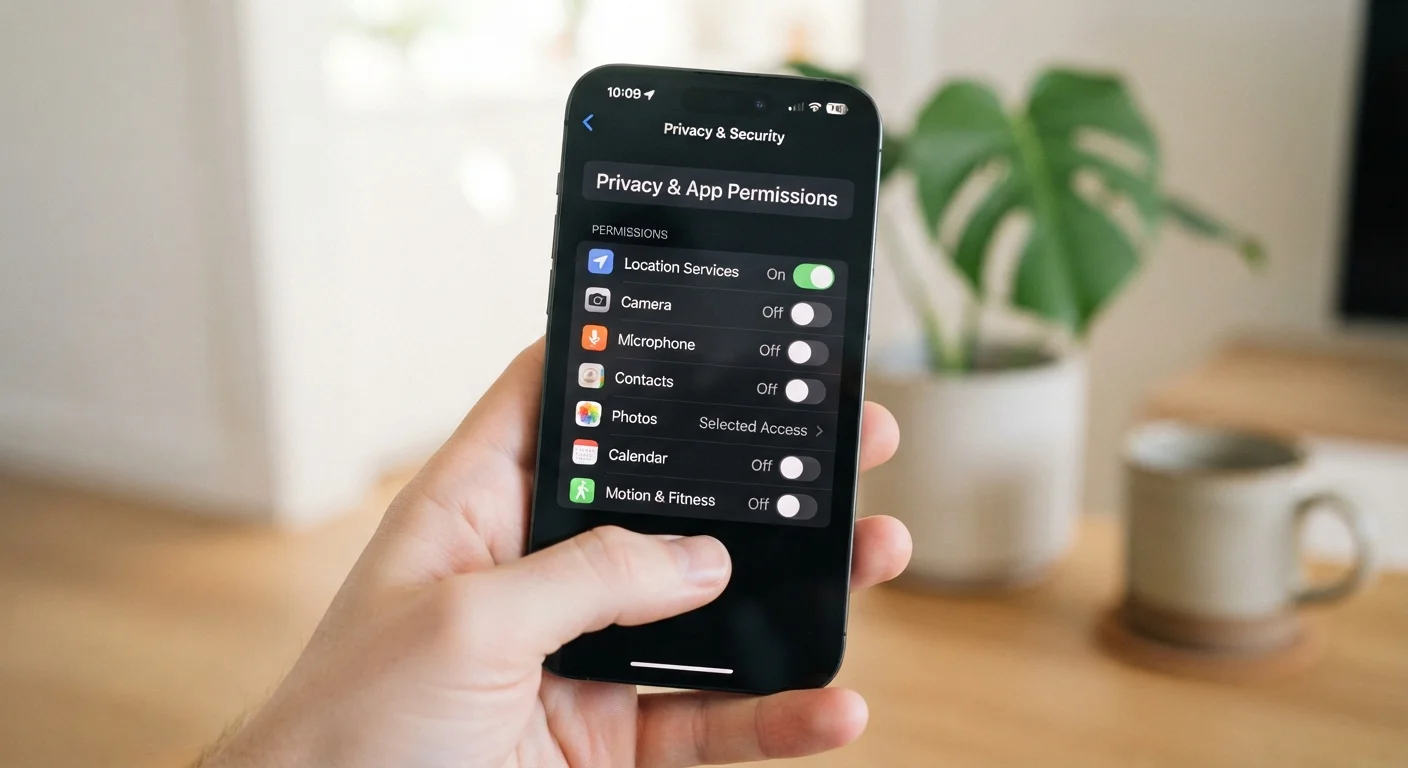
Photo credit: TopInfoTabs.com | Easy Insights For Inspiration
In this article
App permissions, location tracking, and ad IDs can be tightened without making your phone frustrating. Here's a practical, balanced approach.
Key Takeaways
- Most privacy wins come from adjusting a handful of permissions, not disabling features wholesale.
- Location access set to 'While Using' instead of 'Always' eliminates background tracking for most apps.
- Resetting your advertising ID periodically limits the profile ad networks build on your behavior.
- App permission audits take under ten minutes and reveal surprising access you likely forgot you granted.
Why All-or-Nothing Privacy Thinking Backfires
Most people treat phone privacy as a binary choice: lock everything down or accept that your data is exposed. Neither extreme serves you well. Disabling location entirely breaks navigation, weather apps, and find-my-phone features you'll genuinely miss. Leaving every permission open by default means apps routinely access data they have no real need for.
The practical middle ground is precision, not prohibition. Both Android and iOS have matured significantly in their permission architectures, giving users meaningful control without requiring technical expertise. The challenge is knowing which levers to pull - and understanding what each one actually does.
For a broader look at how Android and iOS handle privacy differently at a structural level, see our breakdown of the genuine differences between platforms.
The Permissions Worth Auditing Right Now
App permissions are the single highest-impact area for most users. Both platforms let you review what each app can access - and when - through the main Settings menu. What you'll often find surprises people: flashlight apps requesting microphone access, games requesting contacts, utility tools requesting precise location.
Audit app permissions every three to four months, not just at install time.
Permissions granted at install are rarely revisited, even when your usage of an app changes. An app you opened once still holds access it requested on day one. Regular reviews surface forgotten grants before they accumulate into a significant exposure.
Default to 'While Using' for location, and only upgrade to 'Always' when the function genuinely requires it.
Background location is one of the most data-rich permissions available to apps. Limiting it to active use removes a passive data stream without affecting the app's usefulness when you actually open it.
Reset your advertising ID periodically and disable ad personalization where the option exists.
Ad networks use your advertising ID to build behavioral profiles across apps. Resetting it starts that process over, and disabling personalization opts you out of interest-based targeting while keeping ads functional.
Use per-app microphone and camera controls rather than assuming apps behave responsibly.
Microphone and camera access are high-sensitivity permissions. Granting them once does not mean they should remain on indefinitely - especially for apps that only used them for a one-time feature like a profile photo upload.
Enable 'Ask Apps Not to Track' on iOS, or review individual tracking permissions on Android.
App tracking transparency features require apps to ask before linking your activity across other companies' apps and websites. Many apps function identically whether you allow or deny this - the tracking serves advertisers, not app functionality.
Beyond individual app reviews, your advertising ID (called IDFA on iOS and Ad ID on Android) is a persistent identifier that lets ad networks link your behavior across apps. Resetting it periodically - or opting out of personalized ads entirely - reduces the density of the profile advertisers build on you, without affecting how the apps themselves function.
Location Access: The Setting Most People Get Wrong
Location is the permission that generates the most confusion. The options - Never, While Using the App, Always, and (on some Android builds) Only This Time - are not equal. 'Always' means an app can record your location even when you haven't opened it, which few everyday apps genuinely need.
Switch to Approximate Location Where You Can
iOS and Android both now allow you to share only your approximate location rather than your precise GPS coordinates. For apps like weather, local news, or restaurant discovery, approximate location is entirely sufficient - and it prevents apps from pinpointing your exact address or daily movement patterns. Look for the 'Precise Location' toggle within each app's location settings.
A practical rule: grant While Using for navigation, delivery, and ride-hailing apps. Grant Never for apps where location serves only advertising purposes. Only grant Always to apps where background tracking is the core function - fitness trackers, parental monitoring tools, or vehicle-tracking utilities.
Also check whether apps are using precise versus approximate location. Weather and local news apps work perfectly well with an approximate position - they don't need to know your exact street address.
Quick Wins You Can Implement Today
If you're setting up a new device and want to get these habits in place from the start, our guide to setting up a new phone without losing anything that matters walks through the full process on both platforms, including privacy settings worth configuring early.
What Tighter Privacy Settings Won't Fix
Permission management is genuinely useful, but it has limits worth understanding. It doesn't protect data you actively submit - forms you fill out, accounts you create, or information you share with an app's own servers. A photo-editing app you've granted camera access to still receives any photo you choose to upload.
Permissions Don't Govern Data You Voluntarily Submit
App permissions control what your device's sensors and stored data an app can access passively. They don't restrict what happens to information you actively enter - account details, search queries, payment information, or content you upload. For that data, an app's privacy policy and data retention practices are what matter, and those vary widely by developer and jurisdiction.
Keeping your operating system updated is one of the most durable privacy habits available, since security patches frequently address vulnerabilities that bypass permission systems entirely. This connects directly to overall device longevity - ignoring software updates is one of the habits that quietly shortens a smartphone's lifespan.
For users managing a connected home alongside their phone, the same principle of targeted configuration - rather than disabling features wholesale - applies to smart home devices. Our smart home privacy and network safety guide covers how to think about those tradeoffs.

Author
Tech & Gadgets Editorial Team
Tech & Gadgets Editorial Team is the collective byline for our editorial team and contributor network. Articles published under this byline or an editorial pen name are researched, written, and reviewed according to our editorial standards for clarity, consistency, and independence before publication.
View all articles →