
Accessories That Meaningfully Improve Everyday Computer Use
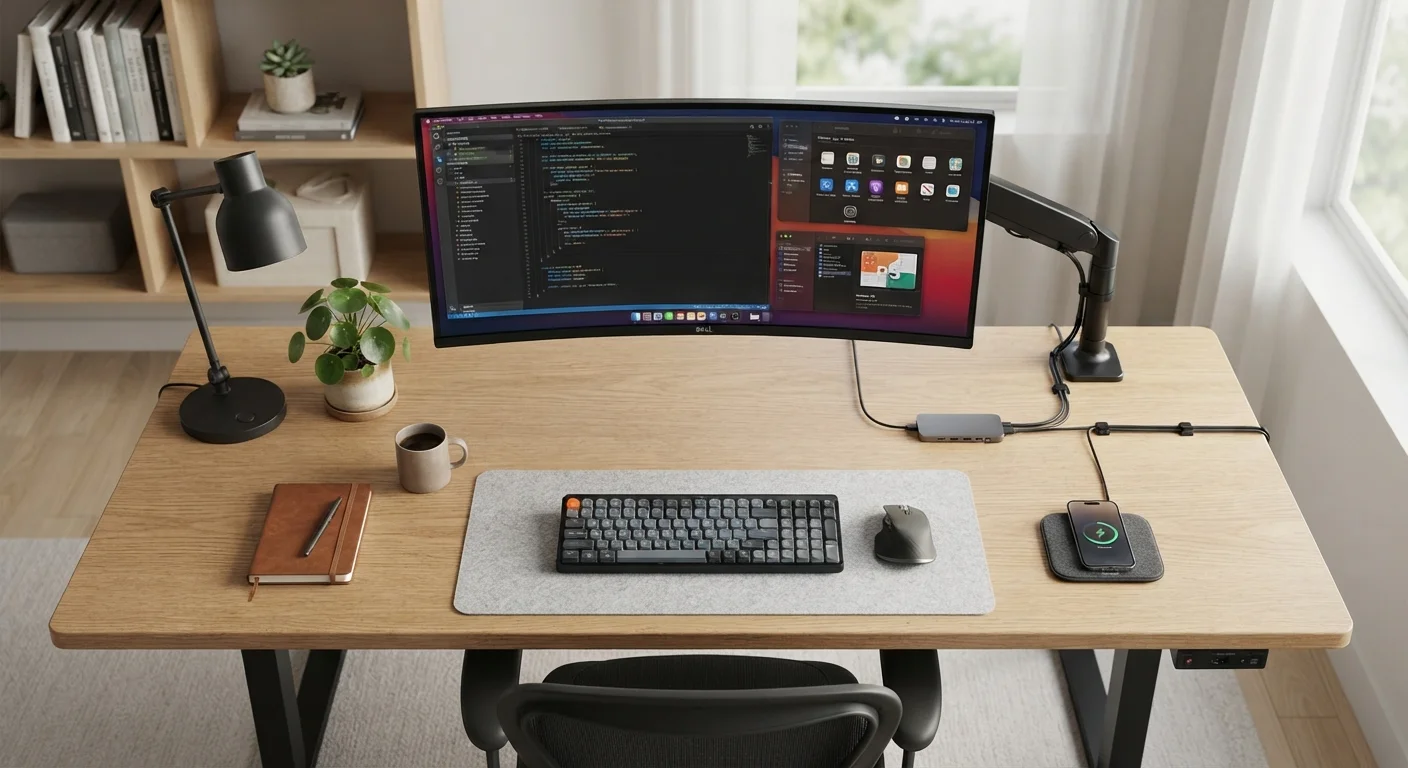
Photo credit: TopInfoTabs.com | Easy Insights For Inspiration
From monitor arms to USB hubs and cable management tools, a curated look at the accessories that genuinely change how a setup feels to use.
Key Takeaways
- A monitor arm reclaims desk space and eliminates neck strain more effectively than any chair adjustment alone.
- A powered USB hub solves port scarcity on modern laptops without requiring a full docking station investment.
- Cable management tools have an outsized effect on both focus and the longevity of your cables.
- An external webcam meaningfully improves video call quality beyond what built-in laptop cameras deliver.
- Desk lighting positioned correctly reduces eye fatigue during long screen sessions.
Why the Right Accessories Change Everything
Most computers ship ready to compute - but the surrounding setup determines whether using one feels comfortable and efficient or subtly frustrating. Accessories rarely make headlines, but the difference between a cable-strewn desk with a tilting screen and a clean, well-lit, ergonomically sound workstation is felt every single workday.
This isn't about gear for its own sake. The accessories below were selected because each addresses a genuine friction point in everyday computer use - poor posture, missing ports, tangled cables, subpar video calls, or eye strain. If you're building out a home workstation, these additions are worth understanding before you spend anything.
Desktop vs. Laptop: Different Priorities
Desktop users typically have less need for a USB hub (most towers ship with ample ports) but benefit significantly from monitor arm investment since they're more likely to have a large, heavy display on a fixed stand. Laptop users face the opposite: port scarcity is the more pressing issue, and a stand plus hub combination often delivers the biggest daily improvement.
Not every item here is necessary for every setup. A desktop tower at a fixed desk has different needs than a laptop used across multiple surfaces. Use this list to identify which friction points actually affect your day-to-day experience.
Monitor Arm
A monitor arm replaces the fixed stand that ships with most displays, letting you position the screen at the precise height, depth, and angle that keeps your neck neutral. The ergonomic argument is well-established: screen height that requires you to look down or crane upward translates to tension across the shoulders and upper back over time.
Beyond ergonomics, a monitor arm frees the desk surface beneath the monitor entirely, recovering a surprising amount of usable space. Dual-arm configurations extend this benefit to multi-monitor setups, letting both screens share a single desk anchor point rather than competing for surface real estate with their own bases.
Most arms attach via a clamp to the desk edge or through a grommet hole, and accommodate standard VESA mounting patterns (a four-bolt pattern on the monitor back, typically 75mm or 100mm spacing). Check your monitor's specs before purchasing.
A monitor arm corrects screen height in a way no chair adjustment can fully replicate.
Powered USB Hub
Modern laptops, particularly thin-and-light models, frequently ship with two USB-C ports and little else. A USB hub - specifically a powered hub with its own AC adapter - expands that to a useful array of ports without drawing down the laptop's battery to do so. Unpowered hubs rely entirely on the host device's power, which causes problems when connecting storage drives or peripherals that need consistent current.
Hubs vary significantly in what they offer: some add only USB-A ports for legacy devices, while others include HDMI or DisplayPort outputs, SD card slots, and Ethernet. The peripheral glossary is a helpful reference for decoding the specifications you'll encounter when comparing options.
A powered hub - not an unpowered one - is what actually solves the port-scarcity problem on modern laptops.
Cable Management Tools
Cable chaos is more than an aesthetic problem. Cables left unmanaged are subject to repeated bending stress at connection points, shortening their lifespan. They also create a low-level cognitive load - the visual disorder of a tangled desk competes with attention in a way that a clean surface does not.
Practical cable management doesn't require elaborate systems. Velcro cable ties, adhesive clips along the desk edge, and a simple cable tray beneath the desktop are enough to route power and data cables out of sight. The objective is to fix cables in place rather than letting them shift with use, which is where wear typically concentrates.
Cables in motion wear faster - fixing them in place is maintenance, not just tidiness.
External Webcam
Built-in laptop webcams remain a weak point on most machines, limited by the thin bezel space available for the lens and sensor. The result is typically a 720p or low-quality 1080p image that performs poorly in anything other than bright, even lighting.
A dedicated external webcam - mounted at eye level on a monitor - addresses both image quality and positioning simultaneously. Eye-level framing is a meaningful improvement for video call presence: it removes the unflattering upward angle that laptop cameras impose and puts you at natural conversational height relative to the people you're speaking with. Look for models with a physical privacy shutter, which provides a straightforward way to confirm the camera is covered when not in use.
Eye-level camera positioning changes how you appear in video calls as much as image quality does.
Desk Lighting
Screen-only environments - where the monitor is the primary or sole light source - create high contrast between the display and the surrounding area. Over long sessions, the eyes work harder to adjust between the bright screen and darker surroundings, contributing to the fatigue commonly described as digital eye strain.
A monitor-mounted light bar or a well-positioned desk lamp addresses this by raising the ambient light level around the screen without introducing glare onto it. Bias lighting - placing a light source behind the monitor - is a related technique that reduces perceived contrast between the screen and the wall behind it. Color temperature matters here: warmer light in the 2700K-3000K range is generally easier on the eyes during evening use, while cooler daylight-balanced options (around 5000K-6500K) tend to support alertness during daytime work.
Raising ambient light around a monitor reduces the contrast your eyes must constantly compensate for.
Laptop Stand
For users who work primarily on a laptop, a stand that elevates the screen to eye level - used alongside an external keyboard and mouse - closes most of the ergonomic gap between laptop and desktop use. The default laptop posture, where the screen sits flat on a desk surface, places the display well below comfortable viewing height and compresses the posture accordingly.
Stands range from simple folding risers to adjustable mechanisms that allow height and angle changes. The key requirement is stability: a stand that wobbles when you type introduces vibration that interferes with the display. Paired with a good peripheral choice, a laptop stand transforms a portable machine into a genuinely comfortable daily driver - the keyboard and mouse guide covers that side of the equation in detail.
A laptop stand used with an external keyboard is one of the most cost-effective ergonomic interventions available.
Getting the Most From These Additions
Each of these accessories works better when it's chosen to match the specific computer and workflow it's supporting. A USB hub, for example, is only as useful as your understanding of what ports your laptop actually has - our plain-English port guide is a useful starting point before you buy. Likewise, pairing any of these with a well-considered keyboard and mouse choice rounds out the setup; see what separates a good peripheral from a great one for that layer of the decision.
Start With the Friction, Not the Accessory
Before purchasing any accessory, identify the specific daily irritant you're solving: neck tension, missing ports, tangled cables, poor video quality. Buying toward a problem rather than toward a product category keeps the setup lean and purposeful. A well-chosen single addition will outperform several unfocused ones.
The goal is a setup where the hardware disappears - where you're thinking about your work, not your gear. That standard is a reasonable bar to hold any accessory purchase to.

Author
Tech & Gadgets Editorial Team
Tech & Gadgets Editorial Team is the collective byline for our editorial team and contributor network. Articles published under this byline or an editorial pen name are researched, written, and reviewed according to our editorial standards for clarity, consistency, and independence before publication.
View all articles →