
Ports and Connectivity: A Plain-English Map of What Goes Where
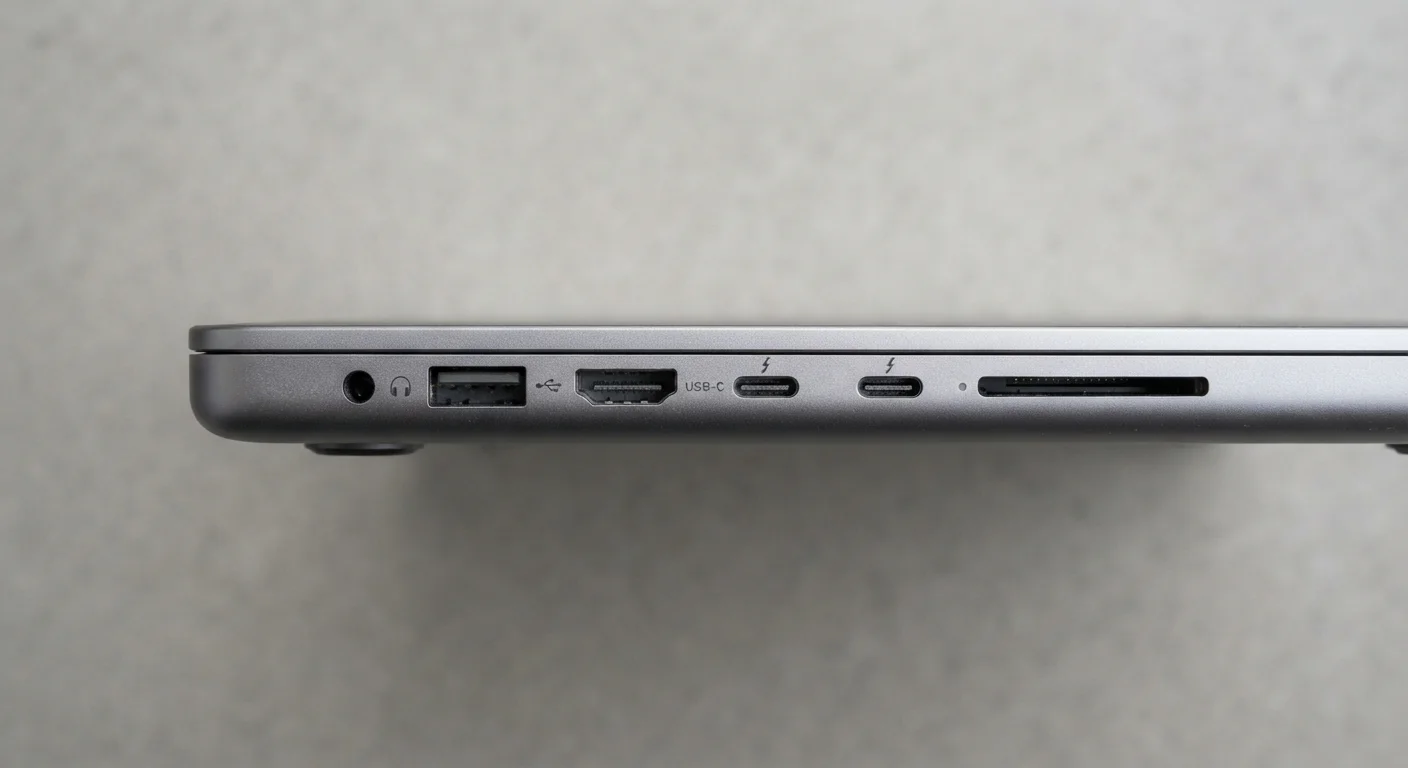
Photo credit: TopInfoTabs.com | Easy Insights For Inspiration
In this article
USB-A, USB-C, Thunderbolt, HDMI, DisplayPort — this reference explains every port on a modern computer and what each one is actually for.
USB: The Port Family You Use Every Day
USB - Universal Serial Bus - is the most common connector type on modern computers, but 'USB' covers several different standards that perform very differently. Understanding the distinctions saves frustration when a cable doesn't work as expected.
USB-A is the flat, rectangular port that has dominated computing for two decades. It works with mice, keyboards, flash drives, and countless accessories. Speed depends on version: USB 2.0 maxes out at 480 Mbps (adequate for keyboards and mice), while USB 3.2 Gen 2 reaches 10 Gbps (suitable for fast external drives).
USB-C is the smaller, reversible oval connector increasingly replacing USB-A. A single USB-C cable can carry data, video, and power simultaneously - but only if the port and cable both support those functions. See
USB-C Looks the Same - But Isn't
Not every USB-C port offers the same capabilities. A USB-C port on a budget laptop may only support USB 2.0 data speeds and basic charging, while a Thunderbolt 4 port on a premium machine can drive two 4K monitors and transfer files at up to 40 Gbps. Always check a device's spec sheet for the capabilities behind each port, not just its physical shape.
For a broader look at how these connector differences apply to accessories like hubs and docks, see the Peripheral Glossary for full definitions.
| USB-A maximum speed (USB 3.2 Gen 2) | Up to 10 Gbps (USB Implementers Forum specification) |
| USB-C maximum speed (USB4 Gen 3) | Up to 40 Gbps (USB Implementers Forum specification) |
| Thunderbolt 4 bandwidth | 40 Gbps (Intel Thunderbolt 4 specification) |
| HDMI 2.1 maximum resolution | Up to 10K (at lower frame rates) (HDMI Forum specification) |
| DisplayPort 2.1 maximum bandwidth | 80 Gbps (UHBR20 mode) (VESA DisplayPort 2.1 specification) |
| Ethernet (Gigabit) typical speed | Up to 1,000 Mbps (IEEE 802.3ab standard) |
Thunderbolt, HDMI, DisplayPort, and Ethernet
Thunderbolt ports use the USB-C shape but run Intel's proprietary protocol on top. Thunderbolt 3 and 4 both deliver 40 Gbps, support external monitors, and allow daisy-chaining multiple devices from one port. Thunderbolt ports are identifiable by a lightning bolt icon. Not every USB-C port is Thunderbolt, but every Thunderbolt port accepts standard USB-C cables.
HDMI is the go-to port for connecting a computer to a TV or external display, particularly in living-room and home-office setups. HDMI 2.0 handles 4K at 60 Hz; HDMI 2.1 supports 4K at 120 Hz and higher resolutions. Most consumer laptops include a full-size or mini-HDMI port.
DisplayPort is common on desktop monitors and workstations. It supports higher refresh rates at a given resolution than equivalent HDMI versions, which is why it's preferred for high-refresh-rate gaming monitors. Mini DisplayPort (a smaller variant) appears on some older laptops.
Ethernet (RJ-45) provides a wired network connection. Many thin laptops omit it, but it remains valuable for reliable, low-latency connections - remote work, video calls, and large file transfers all benefit from wired rather than wireless connectivity.
If you're weighing a laptop against a desktop partly based on port selection, the trade-offs are explored in detail in Laptop vs. Desktop: Thinking Through the Trade-Offs.
USB-A
The rectangular USB connector most people think of as the 'standard' USB plug. USB-A ports are found on nearly every device made in the past 20 years and support data transfer and charging, though speeds vary by version.
USB-C
A smaller, oval-shaped connector that can handle data, video, and power delivery over a single cable. USB-C is reversible - there is no wrong way to plug it in.
Thunderbolt
A high-bandwidth protocol developed by Intel that uses the USB-C physical connector on modern machines. Thunderbolt ports support faster data transfer, daisy-chaining multiple devices, and external GPU connections.
HDMI
High-Definition Multimedia Interface - a standard port for sending audio and video to a monitor, TV, or projector over a single cable. Different HDMI versions support different maximum resolutions and refresh rates.
DisplayPort
An audio-visual connection standard common on desktop monitors and some laptops, capable of higher refresh rates and resolutions than many HDMI versions. Often preferred for gaming monitors and multi-display setups.
Ethernet (RJ-45)
The standard wired network port, shaped like an oversized phone jack. A wired Ethernet connection is generally faster and more stable than Wi-Fi for the same network.
USB Power Delivery (USB PD)
A charging standard that allows USB-C ports to deliver higher wattage, enabling laptops and larger devices to charge over a single USB-C cable.
Daisy-chaining
Connecting multiple devices in a series through a single port - for example, linking two monitors and a storage drive through one Thunderbolt port on a laptop.
Reading a Port Layout at a Glance
When evaluating a computer, the port layout tells you a lot about its intended use. A machine with multiple Thunderbolt ports and no USB-A is aimed at creative professionals who will use adapters and docks. A laptop with a mix of USB-A, HDMI, and an SD card slot targets general consumers who want to plug in without carrying adapters.
Key questions to ask when reviewing any computer's ports:
- How many USB-A ports are there? Useful for everyday accessories without adapters.
- Does the USB-C port support Thunderbolt? Determines whether you can use high-performance docks and daisy-chain monitors.
- What HDMI version is included? Affects the maximum resolution and refresh rate of a connected display.
- Is there a built-in SD card reader? Valuable for photographers and videographers.
- Is there an Ethernet port? Relevant if you work from home or need a stable network connection.
Accessories like USB hubs, docking stations, and adapters can extend a limited port selection - a topic covered fully in Accessories That Meaningfully Improve Everyday Computer Use. For mobile device port and spec questions, the Mobile Specs Glossary applies the same plain-language approach to smartphones and tablets.

Author
Tech & Gadgets Editorial Team
Tech & Gadgets Editorial Team is the collective byline for our editorial team and contributor network. Articles published under this byline or an editorial pen name are researched, written, and reviewed according to our editorial standards for clarity, consistency, and independence before publication.
View all articles →