
The Peripheral Glossary: Every Computer Accessory Term Defined
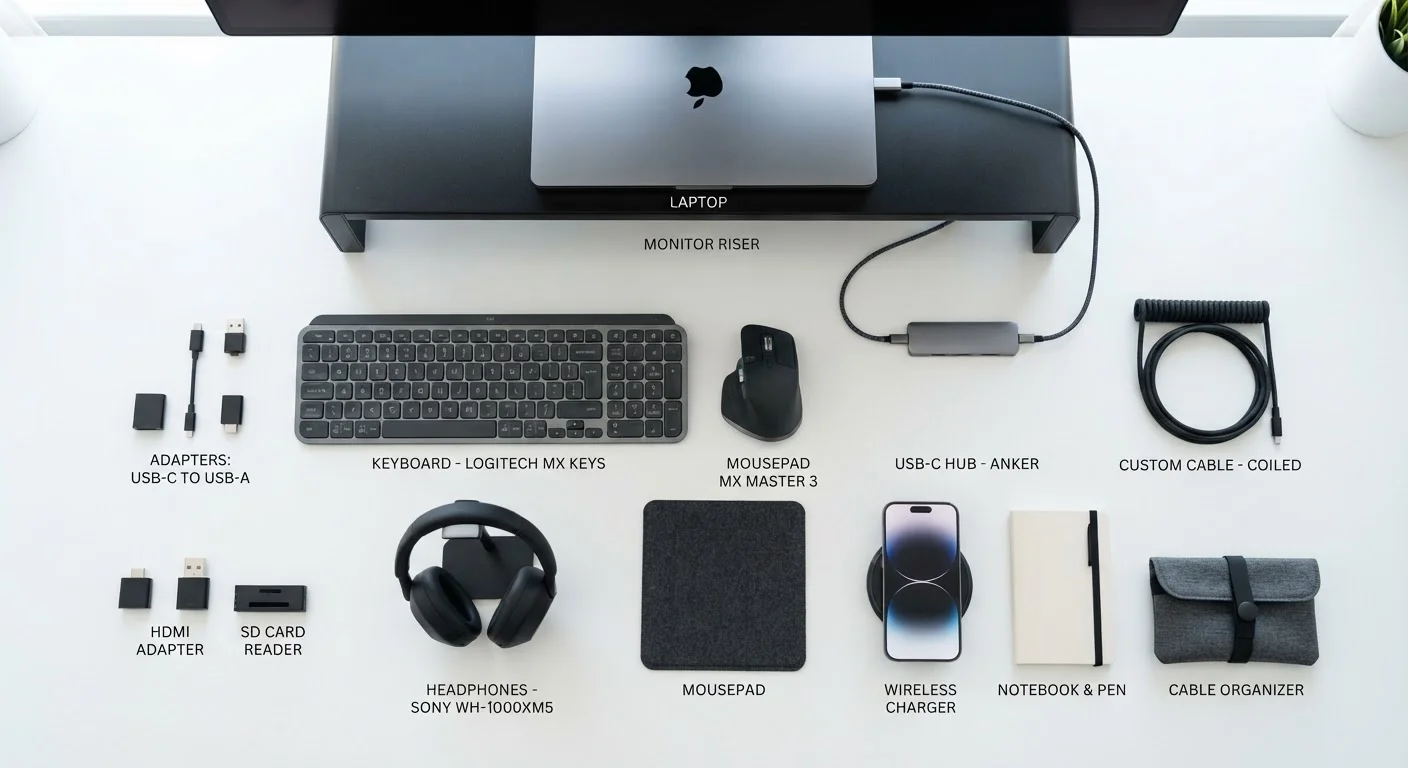
Photo credit: TopInfoTabs.com | Easy Insights For Inspiration
In this article
From USB hubs to KVM switches, this reference guide defines the accessories and connectors you'll encounter when setting up a computer.
Why Peripheral Terminology Matters
Shopping for computer accessories is straightforward until you hit the spec sheets. Terms like "USB 3.2 Gen 2," "KVM switch," or "DisplayPort Alt Mode" appear without explanation, leaving many buyers guessing whether a product will actually work with their setup. This glossary cuts through that uncertainty by defining the most commonly encountered computer accessory terms in plain language.
Whether you're expanding a home office, building a clean desk setup, or simply trying to understand what cable goes where, this reference is designed for quick lookup rather than cover-to-cover reading. For a deeper look at ports specifically, see our plain-English port reference.
USB Hub
A device that expands a single USB port into multiple ports, allowing several accessories to connect simultaneously. Hubs can be powered (with their own power supply) or bus-powered (drawing power from the host computer).
KVM Switch
Stands for Keyboard, Video, Mouse switch. A hardware device that lets one set of input and display peripherals control multiple computers, toggling between them without physically unplugging anything.
Thunderbolt
A high-speed data and video interface developed by Intel and Apple. Thunderbolt ports (typically USB-C shaped) support faster data transfer, video output, and daisy-chaining of multiple devices from a single port.
DPI (Dots Per Inch)
A measure of mouse sensitivity - how many pixels the cursor moves for every inch the mouse travels. Higher DPI means the cursor covers more screen distance with less physical movement.
Polling Rate
How frequently a mouse or keyboard reports its position or key state to the computer, measured in Hz. A 1000 Hz polling rate means the device reports 1,000 times per second, contributing to more responsive input.
DisplayPort Alt Mode
A feature that allows a USB-C port to carry a DisplayPort video signal instead of (or alongside) data, enabling video output through a USB-C cable without a separate video connector.
Docking Station
An accessory that connects to a laptop - usually via a single USB-C or Thunderbolt cable - and expands its connectivity to include multiple ports, video outputs, Ethernet, and sometimes power delivery.
Power Delivery (PD)
A USB charging standard that allows higher wattage power transfer over USB-C cables, enabling laptops and tablets to be charged through the same port used for data and video.
N-Key Rollover (NKRO)
A keyboard capability describing how many keys can be pressed simultaneously and registered correctly. Full N-key rollover means every key can be pressed at once without any inputs being dropped.
Mechanical Switch
A physical switch mechanism beneath each key on a mechanical keyboard. Different switch types vary in actuation force, travel distance, and whether they produce a tactile bump or audible click.
Passive vs. Active Adapter
A passive adapter converts signals without any processing electronics. An active adapter contains a chip to convert between incompatible signal types - required, for example, when connecting DisplayPort to HDMI in certain configurations.
Wireless Protocol
The communication standard a wireless peripheral uses to connect to a computer. Common options include Bluetooth (built into most devices) and proprietary 2.4 GHz RF dongles, which often offer lower latency than Bluetooth.
Key Concepts and Quick Reference
Before diving into individual definitions, a few categories help organize how accessories relate to each other. Connectivity accessories - hubs, adapters, switches - manage how devices talk to a computer. Input peripherals - keyboards, mice, drawing tablets - translate human actions into digital signals. Output peripherals - monitors, speakers, printers - translate digital signals back into something perceivable. For a practical look at what makes input devices worth your attention, see our keyboard and mouse guide.
| USB Generations | USB 2.0, 3.2 Gen 1 (5 Gbps), 3.2 Gen 2 (10 Gbps), 3.2 Gen 2x2 (20 Gbps), USB4 (USB Implementers Forum specifications) |
| Thunderbolt 4 Max Speed | 40 Gbps bidirectional (Intel Thunderbolt 4 specification) |
| Typical Mouse Polling Rate | 125-8,000 Hz depending on device class (General industry range) |
| Power Delivery Max (USB-C PD 3.1) | Up to 240W (USB Implementers Forum, PD 3.1 standard) |
| Common Connector Types | USB-A, USB-C, HDMI, DisplayPort, 3.5mm audio, RJ45 (Ethernet) |
| KVM Switch Typical Use | 1 set of peripherals controlling 2-8 computers (Standard product category range) |
Understanding these categories makes it easier to diagnose compatibility issues. A USB-C hub, for example, is a connectivity accessory - it expands one port into many - while a mechanical keyboard is an input peripheral with its own sub-terminology around switch types and polling rates. For a broader look at which accessories genuinely change a daily workflow, see accessories that meaningfully improve everyday use.
Related Glossaries and Next Steps
Computer accessory terminology overlaps with adjacent categories. Smart home devices often share connectivity standards with desktop peripherals - the home tech glossary covers terms like mesh networks and local processing that appear in peripheral discussions too. Similarly, if you use a laptop as your primary machine, our mobile specs glossary explains overlapping concepts like refresh rate, IP ratings, and USB-C capabilities in a mobile context.
Version Numbers Change What a Port Can Do
Not all USB-C ports are created equal. A USB-C port on one laptop may support Thunderbolt 4, Power Delivery, and video output, while the same-shaped port on another device supports only USB 2.0 data transfer. Always check the specific capabilities listed in your device's documentation rather than assuming based on connector shape alone. This distinction matters most when selecting hubs, docking stations, and video adapters.
Terminology in this space evolves quickly as standards bodies update specifications. When a product listing references a specific version number - USB 3.2 Gen 2x2, Thunderbolt 4, HDMI 2.1 - check the manufacturer's documentation to confirm exactly what capabilities are included, since marketing names don't always tell the full story.

Author
Tech & Gadgets Editorial Team
Tech & Gadgets Editorial Team is the collective byline for our editorial team and contributor network. Articles published under this byline or an editorial pen name are researched, written, and reviewed according to our editorial standards for clarity, consistency, and independence before publication.
View all articles →