
Keyboards and Mice: What Separates a Good Peripheral from a Great One
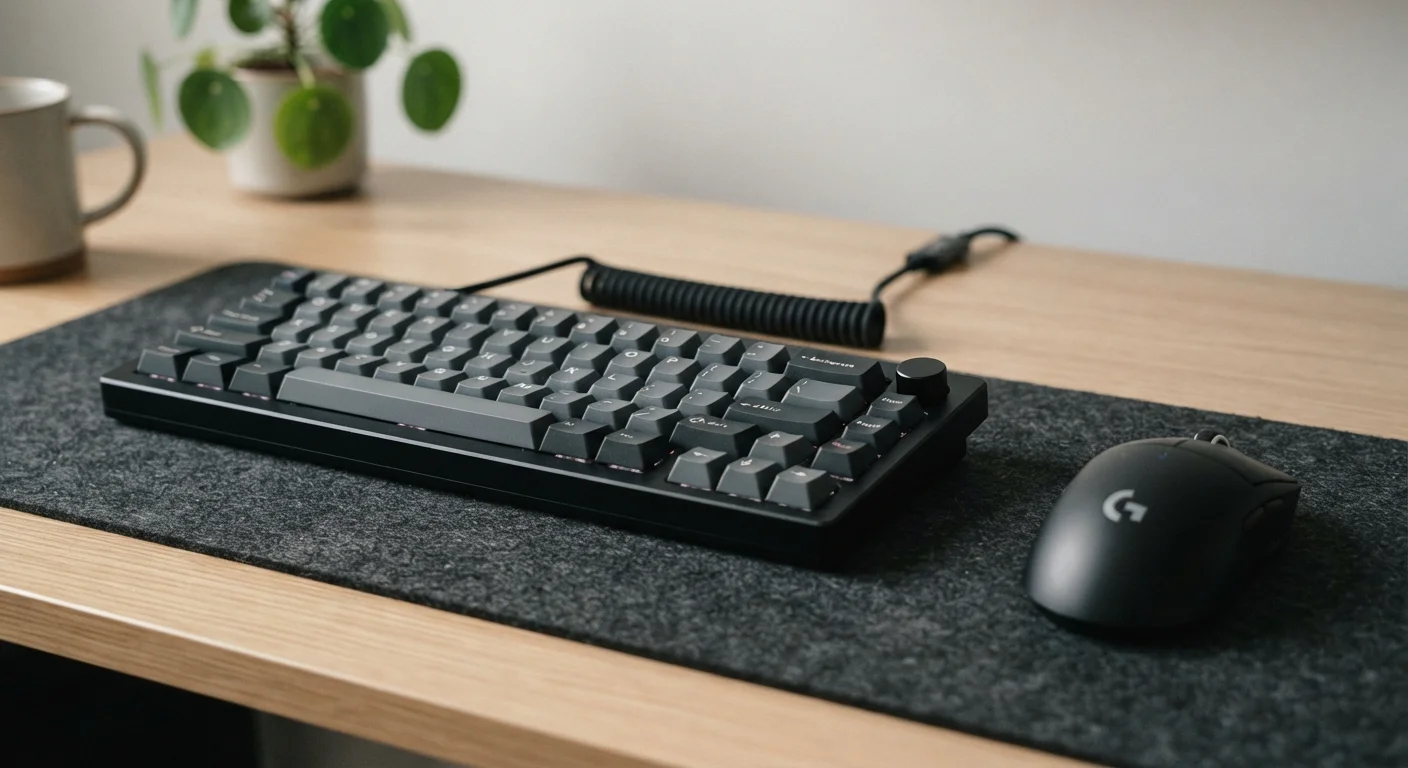
Photo credit: TopInfoTabs.com | Easy Insights For Inspiration
In this article
Switch types, DPI, ergonomics, wireless latency — a practical look at what makes a keyboard or mouse worth your attention.
Key Takeaways
- Keyboard switch type affects typing feel, sound, and fatigue - not just preference.
- DPI is often overstated; sensor consistency and tracking accuracy matter more for most users.
- Wireless peripherals with modern 2.4 GHz dongles are effectively latency-equivalent to wired for most tasks.
- Ergonomic design reduces strain over time, especially for users logging six or more hours daily.
- Your workflow - writing, creative work, or general use - should drive which specs you prioritize.
Why Peripherals Matter More Than You'd Expect
Most people spend more time touching their keyboard and mouse than any other piece of technology they own. Yet these two devices are routinely treated as afterthoughts - grabbed off a shelf without much scrutiny. That's a missed opportunity.
The quality of your input devices directly shapes typing comfort, wrist health, and even how long you can work before fatigue sets in. If you're building or upgrading a computer setup, the peripheral layer deserves as much thought as the screen or processor. For a broader view of how individual accessories contribute to a productive setup, see our guide to setting up a comfortable home workstation.
Keyboard Switch Types: What the Labels Actually Mean
Mechanical keyboards dominate enthusiast conversations, and for good reason - the switch underneath each key determines the entire feel of typing. But membrane and scissor-switch keyboards, common in budget and laptop-style boards, have their own legitimate strengths.
Mechanical Switches
Mechanical switches are categorized by their actuation behavior:
- Linear switches move straight down with consistent resistance and no tactile bump. Quiet and smooth - favored for gaming and fast typists who don't want interruption.
- Tactile switches provide a physical bump partway through the keypress, confirming actuation without bottoming out. Popular for long writing sessions.
- Clicky switches add an audible click alongside the tactile bump. Satisfying for some; disruptive in shared environments.
Membrane and Scissor-Switch
Membrane keyboards use a pressure pad beneath all keys, creating a mushy, uniform feel. They're quiet and inexpensive but offer less feedback. Scissor-switch keyboards - common on laptops and slim desktop boards - use a stabilizing mechanism that improves consistency and reduces key wobble, making them a reasonable choice for portability-focused users.
Before committing to a mechanical switch type, try a switch tester - a small board with one of each switch - rather than relying on descriptions alone. Tactile feel is deeply personal and doesn't translate well to words.
Switch preference varies significantly between individuals, and returning a full keyboard is cumbersome. A $10-20 tester board can prevent a costly mismatch.
Set your mouse DPI to the lowest setting that still feels responsive on your display resolution, then raise it only if you notice cursor jumps or imprecision. High DPI isn't inherently better - it's a tool for specific circumstances.
Running unnecessarily high DPI can amplify micro-tremors in hand movement, reducing precision for tasks like graphic editing or detailed cursor placement.
For a plain-language glossary of peripheral terms like actuation force, debounce, and N-key rollover, the Peripheral Glossary is worth bookmarking.
Mouse Specs Decoded: DPI, Polling Rate, and Sensor Quality
Mouse marketing leans heavily on high DPI numbers, but understanding what those numbers actually do is key to cutting through the noise.
DPI (Dots Per Inch)
DPI measures how far the cursor moves on-screen per inch of physical mouse movement. Higher DPI means a faster-moving cursor at a given sensitivity setting. Most users find 800-1600 DPI perfectly adequate; extremely high DPI figures (12,000+) are rarely useful outside specialized scenarios and can actually introduce noise into cursor movement at lower sensitivity settings.
Polling Rate
Polling rate, measured in Hz, indicates how often the mouse reports its position to the computer. A 125 Hz mouse reports 125 times per second; a 1000 Hz mouse reports 1,000 times per second. For general productivity use, 125-250 Hz is imperceptible in difference. Higher polling rates are primarily relevant for competitive gaming where sub-millisecond precision matters.
Sensor Quality
Optical sensors track movement by reading a surface with a light source. The quality of the sensor chip determines how accurately it translates physical movement - particularly during fast sweeps or on varied surfaces. Tracking consistency and minimal acceleration are more meaningful indicators of quality than raw DPI ceiling alone.
800-1600
DPI range suited to most everyday users
Industry usability guidance consistently notes that ultra-high DPI settings are rarely beneficial outside competitive gaming contexts.
1000 Hz
Polling rate common in precision mice
At 1000 Hz, position is reported every millisecond - a difference imperceptible in productivity use but relevant in fast-paced gaming scenarios.
Ergonomics: Comfort Over the Long Haul
Ergonomics is the factor most often ignored at purchase and most often regretted over time. Extended daily use on poorly fitted peripherals can contribute to wrist strain, shoulder tension, and repetitive stress issues - particularly for users who type or click for six or more hours a day.
Don't Dismiss Ergonomic Signals Early
Mild wrist discomfort or shoulder tension during long sessions is often attributed to posture alone, but peripheral design is frequently a contributing factor. If you're experiencing recurring strain, it's worth evaluating your keyboard tilt, mouse weight, and hand position before simply adjusting your chair. Persistent discomfort should be assessed by a qualified health professional.
Keyboard Ergonomics
Key factors include tilt angle (flat keyboards keep wrists neutral for most users), key layout compactness (tenkeyless or 65% layouts reduce arm reach to the mouse), and wrist rest design. Split keyboards, which divide the board into two halves, allow each hand to rest at a natural angle - a significant benefit for users with shoulder width wider than standard keyboard span.
Mouse Ergonomics
Mouse shape should match grip style: palm grip users benefit from larger, contoured mice; claw and fingertip grip users tend to prefer smaller, lighter shapes. Vertical mice rotate the hand to a handshake position, reducing forearm pronation - a meaningful difference for users who experience wrist discomfort with standard mice. Weight also matters; lighter mice reduce the effort of repeated movements over a full workday.
Wired vs. Wireless: The Real Performance Gap
Wireless peripherals have largely closed the performance gap with their wired counterparts. Modern 2.4 GHz wireless dongles - as opposed to Bluetooth - operate with latency indistinguishable from USB wired connections under typical conditions. Interference can theoretically affect performance in RF-congested environments, but this is rarely a practical issue for home or office use.
Bluetooth wireless introduces slightly more latency variability, making it less ideal for input-sensitive tasks but entirely suitable for general typing and office work. The convenience of reduced cable clutter and cross-device pairing is a genuine quality-of-life benefit - and one worth weighing against the need to manage battery life.
For users with a broader interest in how simplified technology can reduce friction in daily routines, our look at gadgets that quietly simplify daily routines covers similar ground from a different angle.
Battery Life Varies Significantly
Wireless keyboard battery life can range from weeks to years depending on whether the device uses rechargeable lithium batteries or replaceable AAs, and how heavily backlighting is used. Mice tend to consume more power due to the optical sensor running continuously. Checking battery specifications before purchase helps avoid unexpected downtime.
How to Match a Peripheral to Your Actual Workflow
The most technically impressive keyboard or mouse isn't necessarily the right one for your situation. Workflow should drive the decision.
- Writers and document-heavy users benefit most from tactile or clicky switches that provide keystroke confirmation, reducing missed or double-registrations during extended typing sessions.
- Creative professionals - designers, video editors - often prioritize programmable buttons on a mouse and a keyboard with reliable macro support, reducing context-switching across tool palettes.
- General office users typically need comfortable ergonomics and quiet switches above all else, especially in open-plan or shared environments.
- Multi-device users (switching between a laptop and desktop, or multiple machines) may find wireless peripherals with multi-device pairing significantly more practical than wired alternatives.
If you're also weighing whether to pair these peripherals with a desktop or a portable setup, our laptop vs. desktop trade-offs guide covers the core considerations in plain terms. And for a broader look at accessories that genuinely elevate day-to-day computing, see accessories that meaningfully improve everyday computer use.

Author
Tech & Gadgets Editorial Team
Tech & Gadgets Editorial Team is the collective byline for our editorial team and contributor network. Articles published under this byline or an editorial pen name are researched, written, and reviewed according to our editorial standards for clarity, consistency, and independence before publication.
View all articles →