
Why Your Smart Devices Keep Dropping Off the Network
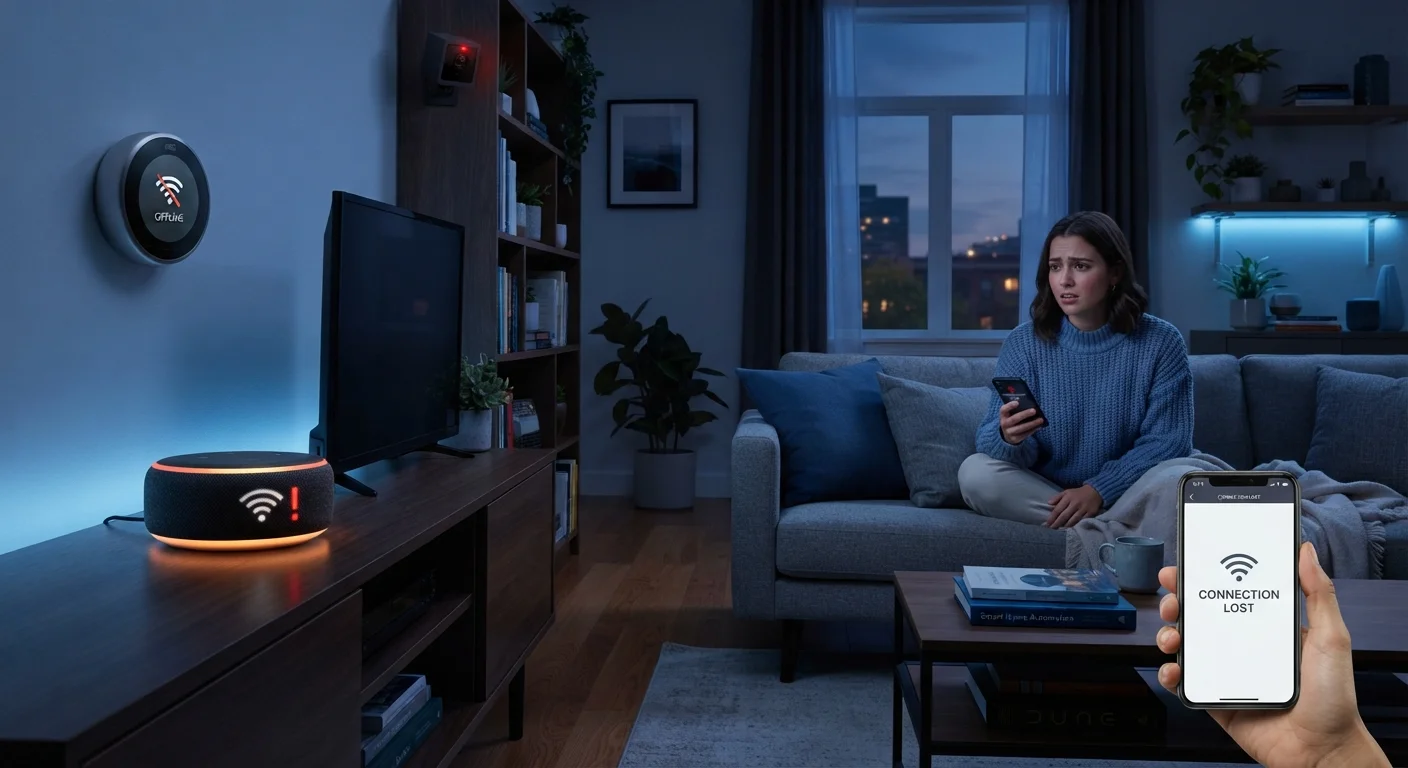
Photo credit: TopInfoTabs.com | Easy Insights For Inspiration
In this article
Frequent disconnections in smart home gadgets usually trace back to a handful of fixable causes. Here's what to check first.
Key Takeaways
- Most smart device dropoffs trace back to router placement, band congestion, or IP address conflicts - not defective hardware.
- The 2.4 GHz band offers wider range but is more prone to interference from neighboring networks and household appliances.
- Assigning static IP addresses to smart devices can eliminate a common and often overlooked disconnection cause.
- Firmware neglect on both devices and routers is a leading contributor to persistent connectivity problems.
- Network segmentation - putting smart devices on their own VLAN or guest network - can improve both stability and security.
Why Smart Devices Disconnect More Than They Should
Smart home gadgets are supposed to fade into the background - lights that turn on automatically, thermostats that learn your schedule, locks that respond to your phone. When those devices keep dropping off your network, the promise collapses fast. The frustrating part is that most disconnection problems share a small set of root causes, none of which require replacing your hardware.
Understanding why disconnections happen means looking at the full chain: your router, your wireless environment, your device settings, and how your network is managed over time. For a broader picture of how different protocols affect device reliability, see our Smart Home Ecosystems Explained guide.
Connecting all smart devices to the 5 GHz band regardless of where they're located in the home.
Why it happens: The 5 GHz band is faster, so many users assume it's always preferable. However, its shorter wavelength means it penetrates walls and floors poorly.
Letting the router assign dynamic IP addresses to smart devices without reserving them.
Why it happens: DHCP is the default on every router, and most users never change it. When a lease expires and a device gets a new IP, some smart home apps and hubs lose track of it entirely.
Ignoring firmware updates for the router, smart devices, or both.
Why it happens: Firmware updates feel optional and slightly risky. In practice, skipping them allows bugs that cause crashes, authentication failures, and connection drops to persist indefinitely.
Placing the router or mesh node in a cabinet, corner, or near competing signal sources.
Why it happens: Routers are often tucked away for aesthetic reasons. Enclosed spaces, microwaves, cordless phones, and neighboring Wi-Fi networks on the same channel all degrade signal quality significantly.
Running too many devices on a single-router setup without considering network capacity.
Why it happens: Routers are sold with maximum device counts that reflect ideal conditions, not real-world simultaneous active connections. A household with 30+ devices can overload a mid-range router.
Steps to Take Once You've Identified the Pattern
Before changing any settings, spend a few minutes observing when devices disconnect. Do they drop at the same time each day? Only during heavy streaming? After a power fluctuation? Patterns often point directly at the cause - a crowded 5 GHz band at peak hours, or a DHCP lease renewal that a particular device handles poorly.
2.4 GHz
Band most smart home devices default to
The 2.4 GHz band supports longer range and wall penetration but is shared by more devices and neighboring networks, increasing interference risk.
~30+
Connected devices in an average smart home
Industry estimates suggest the number of networked devices per household has grown substantially, putting pressure on routers not designed for high device counts.
Once you have a working theory, change one variable at a time and observe for 48 hours. Swapping your router's channel, moving to a static IP, or relocating a mesh node are all low-risk interventions worth testing individually. Connectivity is also tied to broader habits around device maintenance - the same firmware-neglect patterns that cause disconnections can affect other gadgets too, as explored in our article on habits that quietly shorten a smartphone's lifespan.
Avoid Resetting Devices as a First Step
Factory-resetting a smart device wipes its configuration and can create re-pairing headaches, especially with devices tied to proprietary ecosystems. Reserve a reset for situations where all other troubleshooting steps have failed. In most cases, the problem lives at the network level - not inside the device itself.
For a realistic look at what ongoing network management actually demands, the real trade-offs of running a smart home is worth reading before expanding your setup further. And if you're thinking about isolating devices on a separate network - a genuinely effective stability and safety measure - our smart home security and privacy guide covers exactly how to do that.

Author
Tech & Gadgets Editorial Team
Tech & Gadgets Editorial Team is the collective byline for our editorial team and contributor network. Articles published under this byline or an editorial pen name are researched, written, and reviewed according to our editorial standards for clarity, consistency, and independence before publication.
View all articles →